UNSW Making

Haas 5-axis: 3+2 induction

Introduction

This part is designed to be machined using 3+2 axis machining, which means the B and C axis rotate to an angle, lock and then a 3-axis operation is done. There is only one feature that requires a simultaneous toolpaths (where all 5 axes move at once), you will practice more simultaneous toolpaths on the next part. It is also an introduction to machining steel if you haven't yet. Machining steel means you have to learn more about tools and setting speeds and feeds correctly. Finally, this part is designed to show you most of the useful probing capabilities of the machine.

5 axis machining dramatically increases the risk of major collisions that can permanently damage the machine, so everything must be done extremely carefully. This is the easiest machine to crash. All parts of the simulation (stock, holders, tool sickout, work holding vices and the machine model) must be included accurately. The machine is smart enough to stop before the spindle hits the table, but it doesn’t know what work holding or tool you are using so can’t prevent other collisions. You have to prevent crashes by watching the simulation.

Once you have completed the CAM please bring it into the makerspace to get checked by a staff member. If the CAM is good, we will book a time for you to do induction. If there are too many issues with the CAM we will ask you to fix them and return with new CAM. This induction runs by request only, badge training sessions will not appear on the website.

How does a 5 axis work?

The main difference between 5 axis machining and 3 axis machining is that the G54 origin will move. The 5 axis needs to keep track of where the origin and the part move when it rotates. There are two different ways to keep track of the origin: DWO and TCPC.

DWO stands for dynamic work offsets and is activated by G254. DWO is used for 3+2 machining and cannot do simultaneous machining. DWO translates the origin after the B and C axes have rotated and maintains the XYZ directions the same as the machine XYZ.

TCPC stands for tool center point control and is activated by G234. TCPC is used for simultaneous machining (but can also be used for 3+2). TCPC rotates the origin in real time while B and C axes rotate and rotates the XYZ directions as well. This means that G54 origin Z positive direction might be in machine X negative direction!
Setting Up

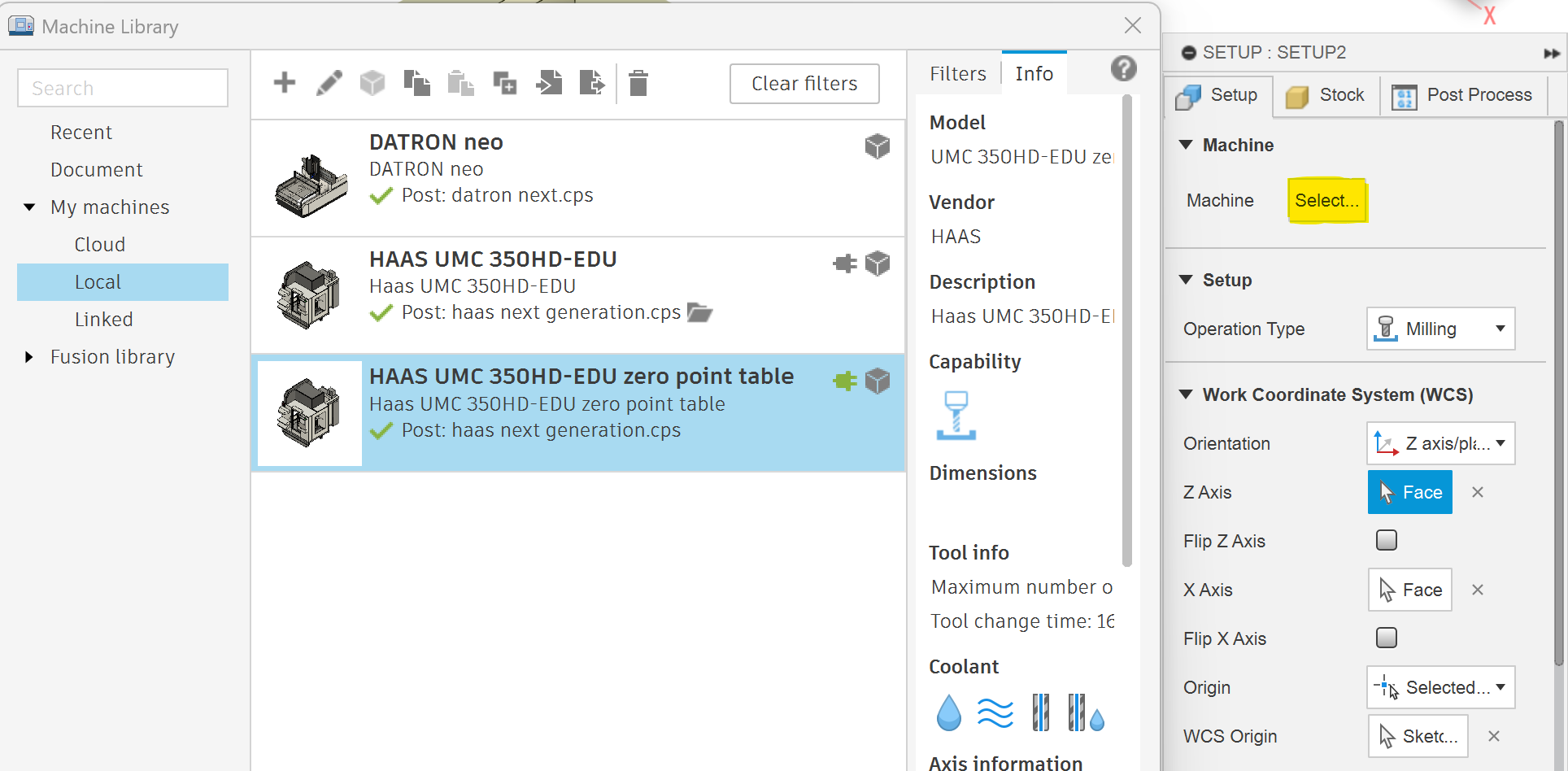
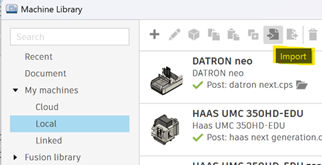
Please download this file and unzip the 5-axis induction folder. This continues the 3+2 induction and the simultaneous induction part files, models of 4 out of the 5 work holding options, most tool holders and the UMC 350 machine model. You can upload the induction parts and work holding models to fusion the normal way, but you will need to import the tool holders and machine model to your tool and machine libraries.

Machine upload
Vice parameters

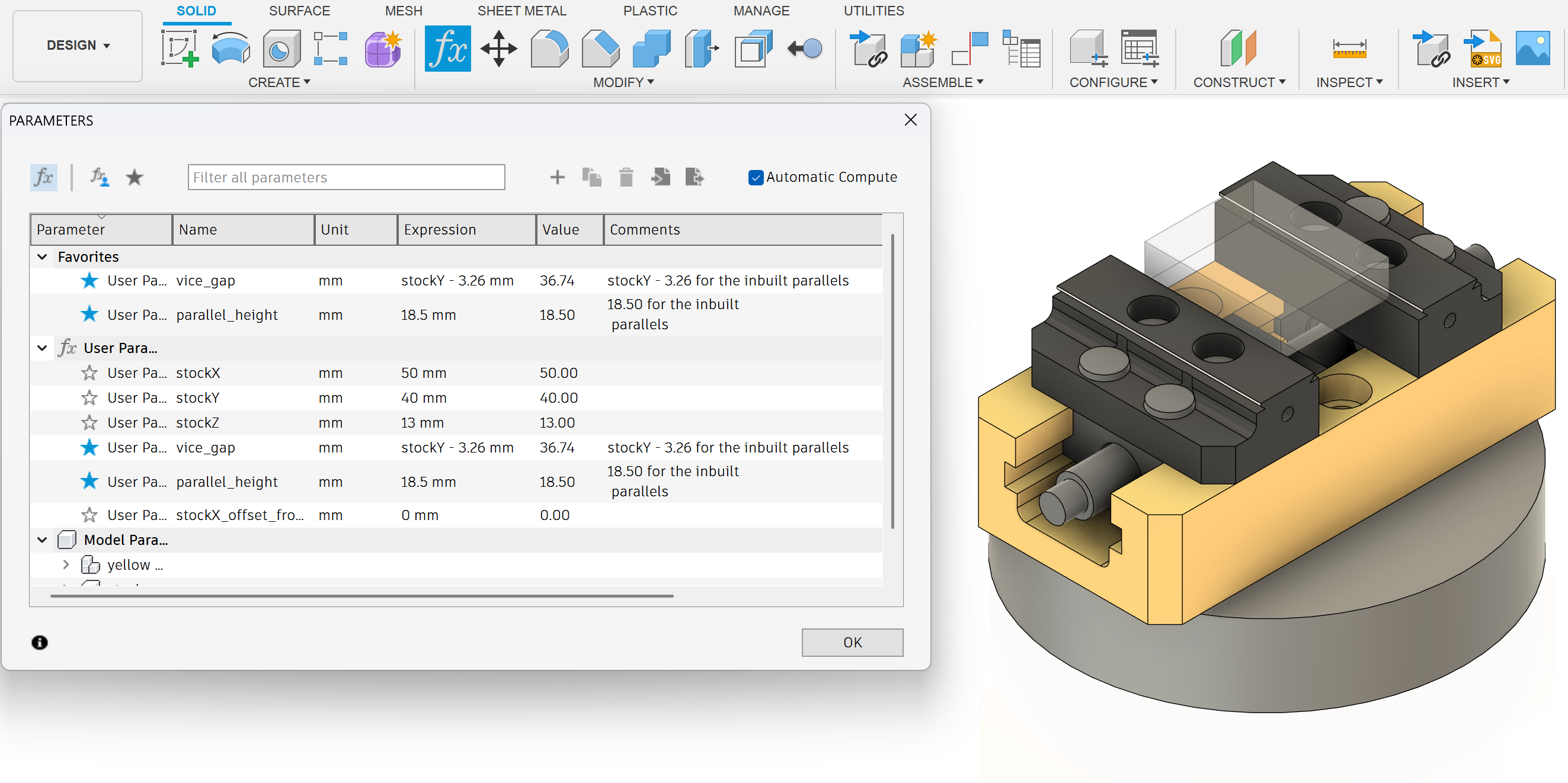
The work holding files are parametrically designed so you can go into the parameters tab to edit the stock size, parallel height and jaw gap.

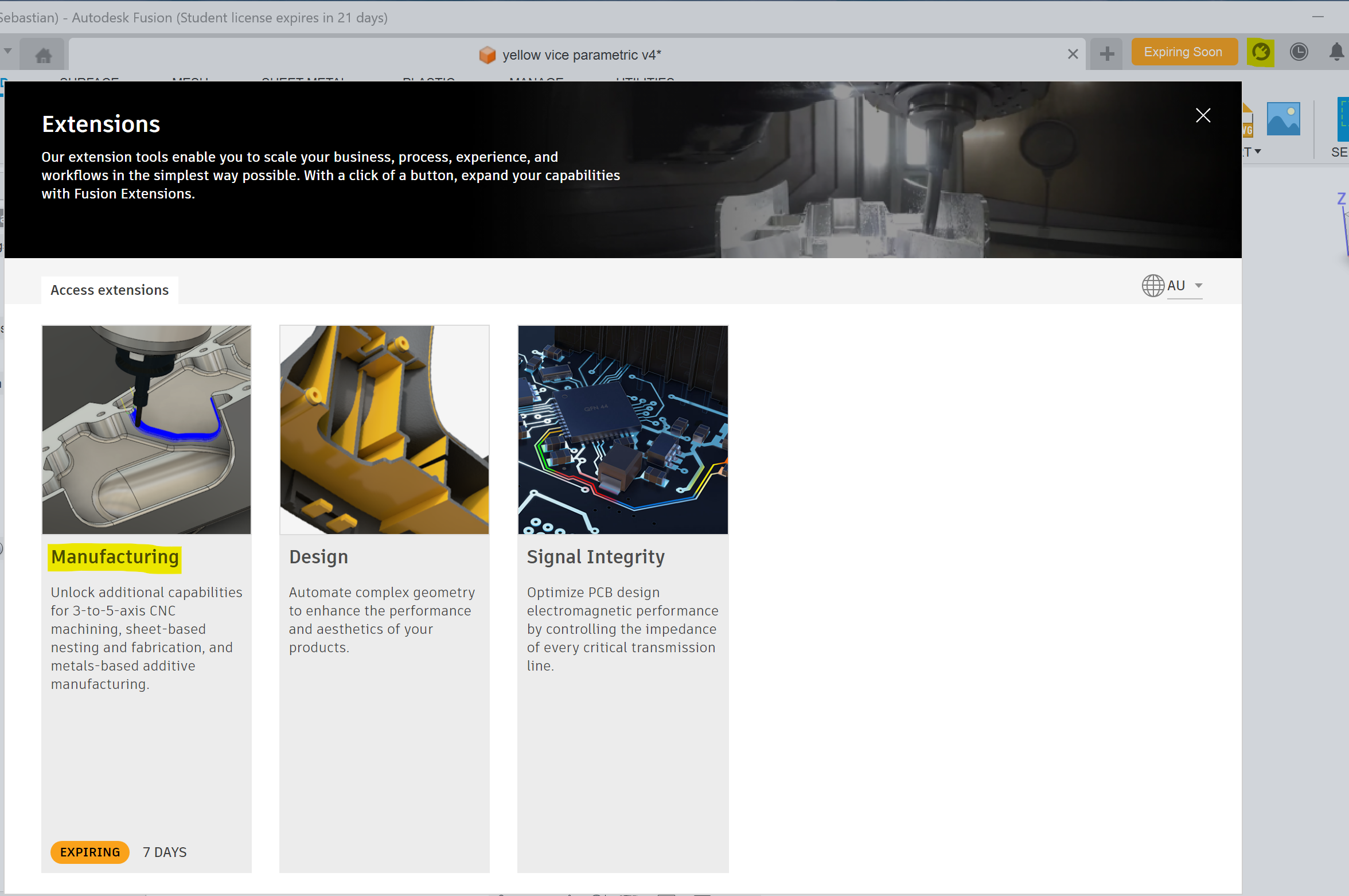
To access all of the 5 axis capabilities you will need to enable the manufacturing extension. This has a 30 day time limit but while you are still a student you can renew your access every 30 days so it is effectively unlimited access.

Manfufacutring extension
Haas 5-axis 3+2 CNC induction

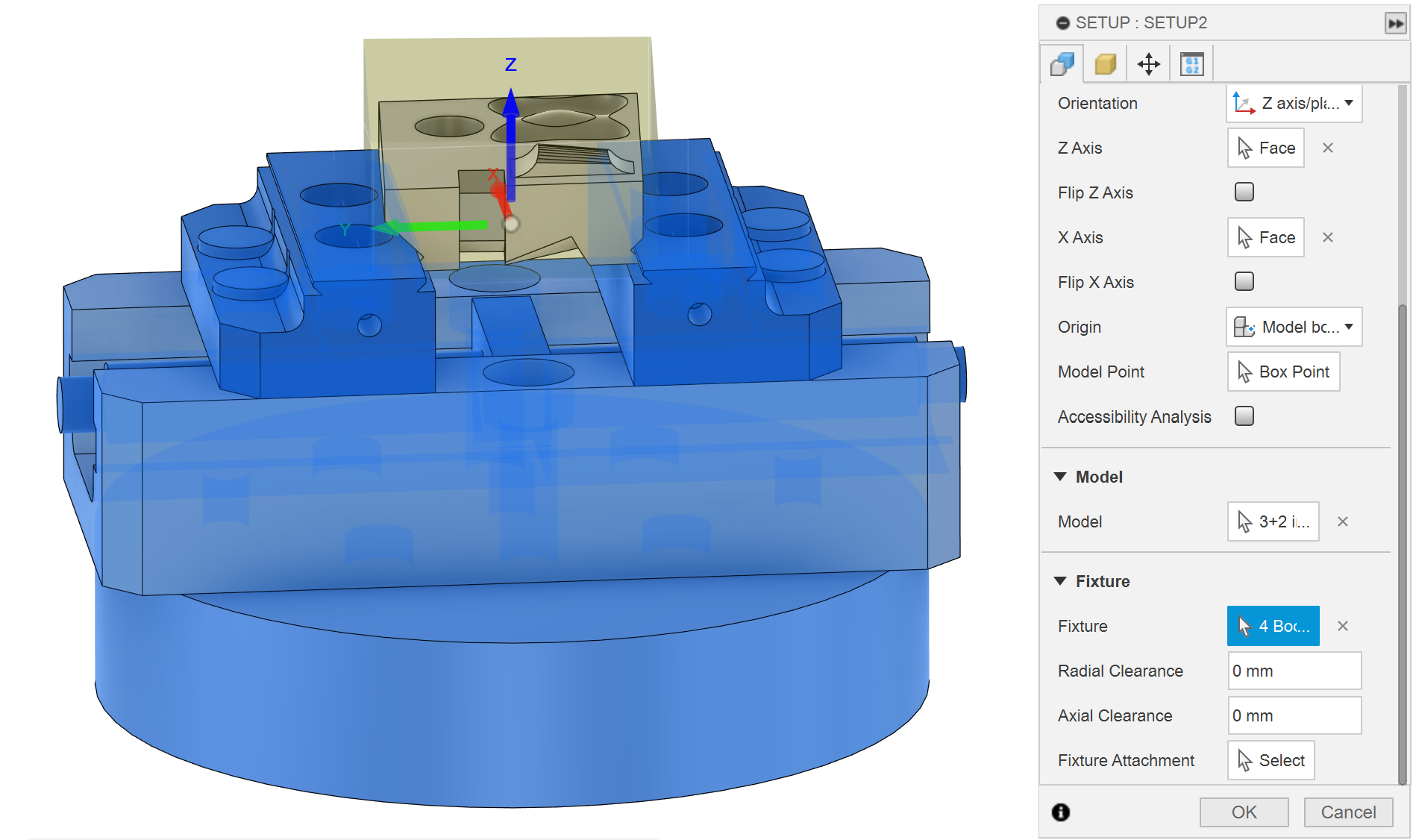
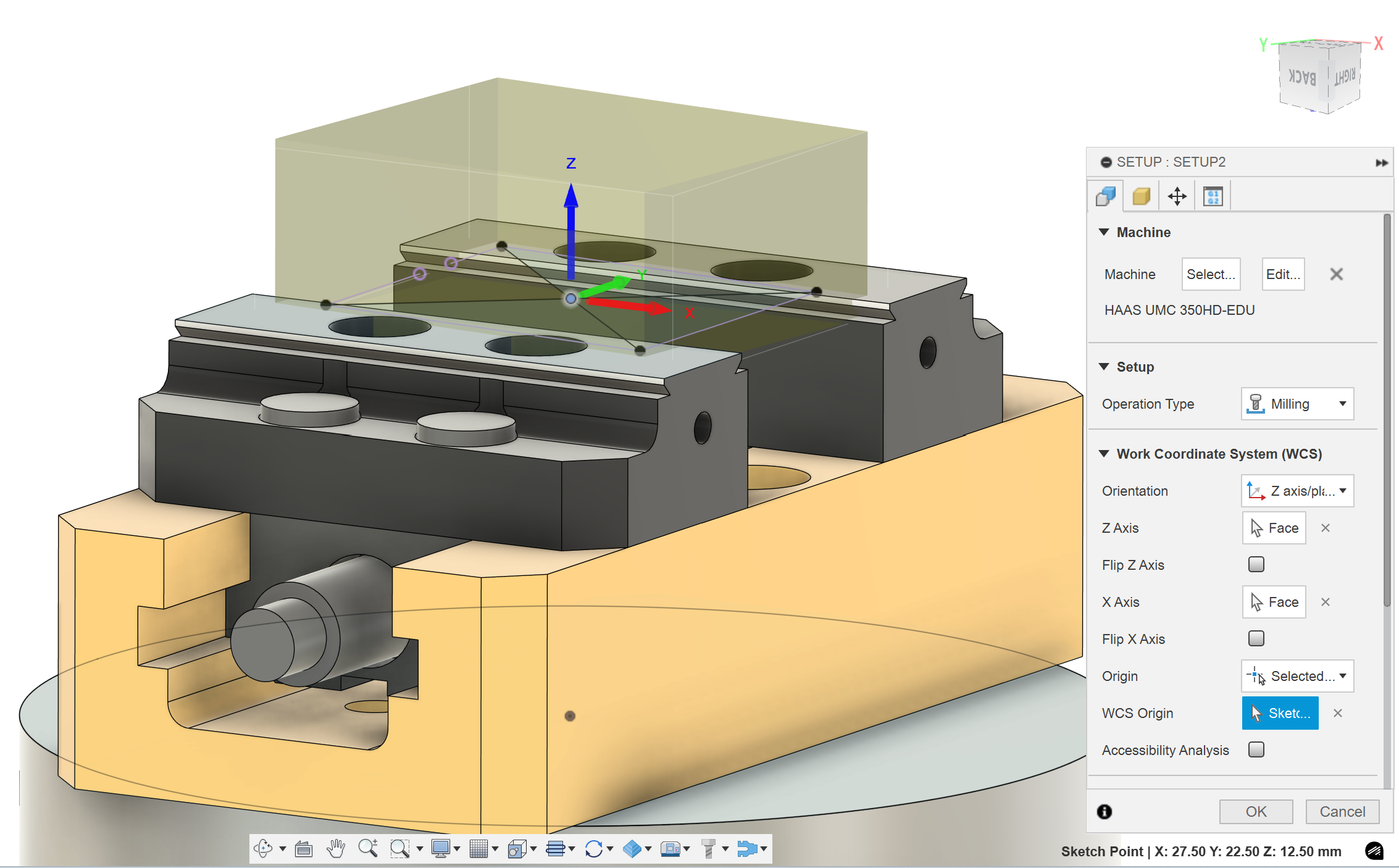
When you make a new setup you have to select the HAAS UMC 350-EDU model from your machine library. This will bring the physical model of the machine into your simulations so that you can see collisions before they happen. It also tells the post processor the type of machine you are using, which will affect the generated G-code.

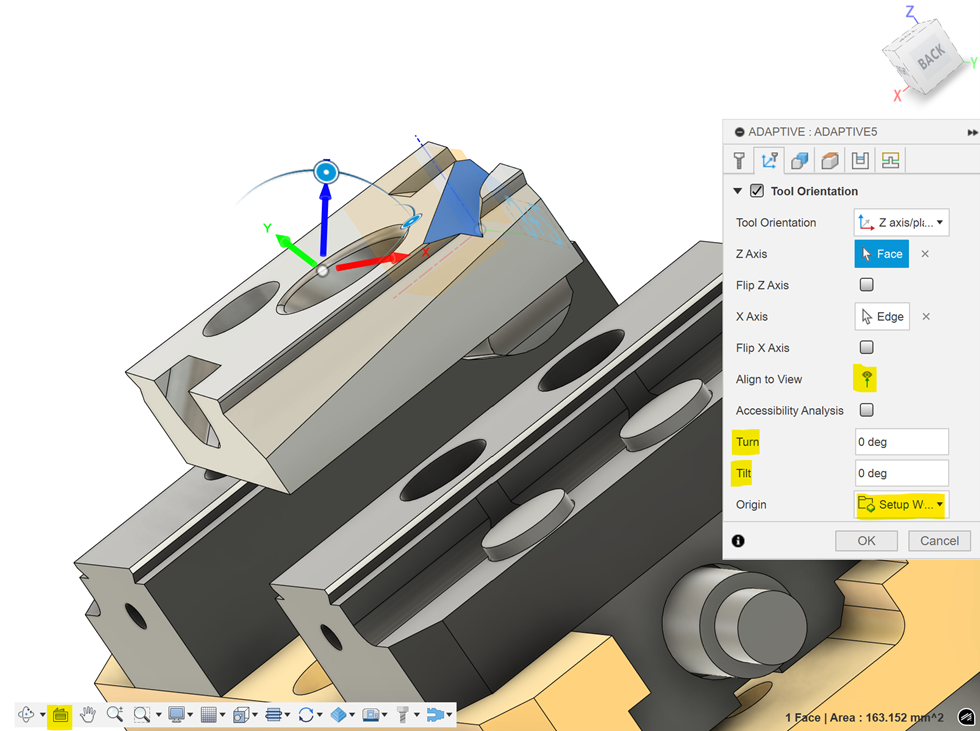
To make the machine rotate for 3+2 machining you need to define new Z and X axis directions, and the post processer will work out what B and C angle it needs to rotate to. This can be done with a tool orientation in most toolpaths. You can set the direction of the Z axis by selecting any plane, cylinder or straight line. There are two useful buttons highlighted in the image: “look at” and “align to view”. You can also manually adjust the turn and tilt of the tool orientation in some toolpaths. Keep the origin setting as setup WCS origin, this will make the machine use a dynamic work offset (the XYZ origin point stays in the same place on the stock but the axis direction rotate).

If you would like more information about tool orientation watch this video.

Haas 5-axis 3+2 CNC induction
5 axis post settings 2

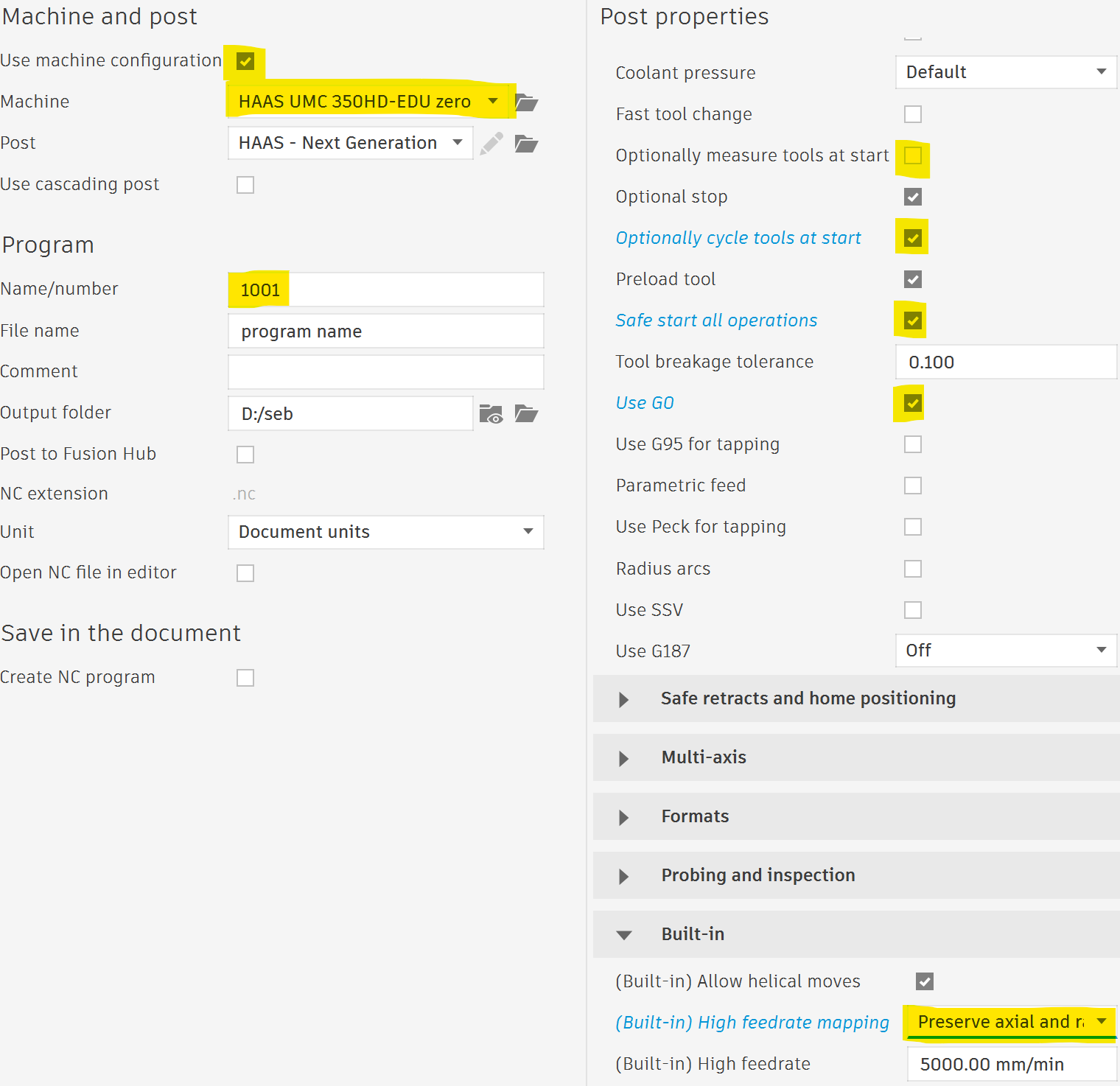
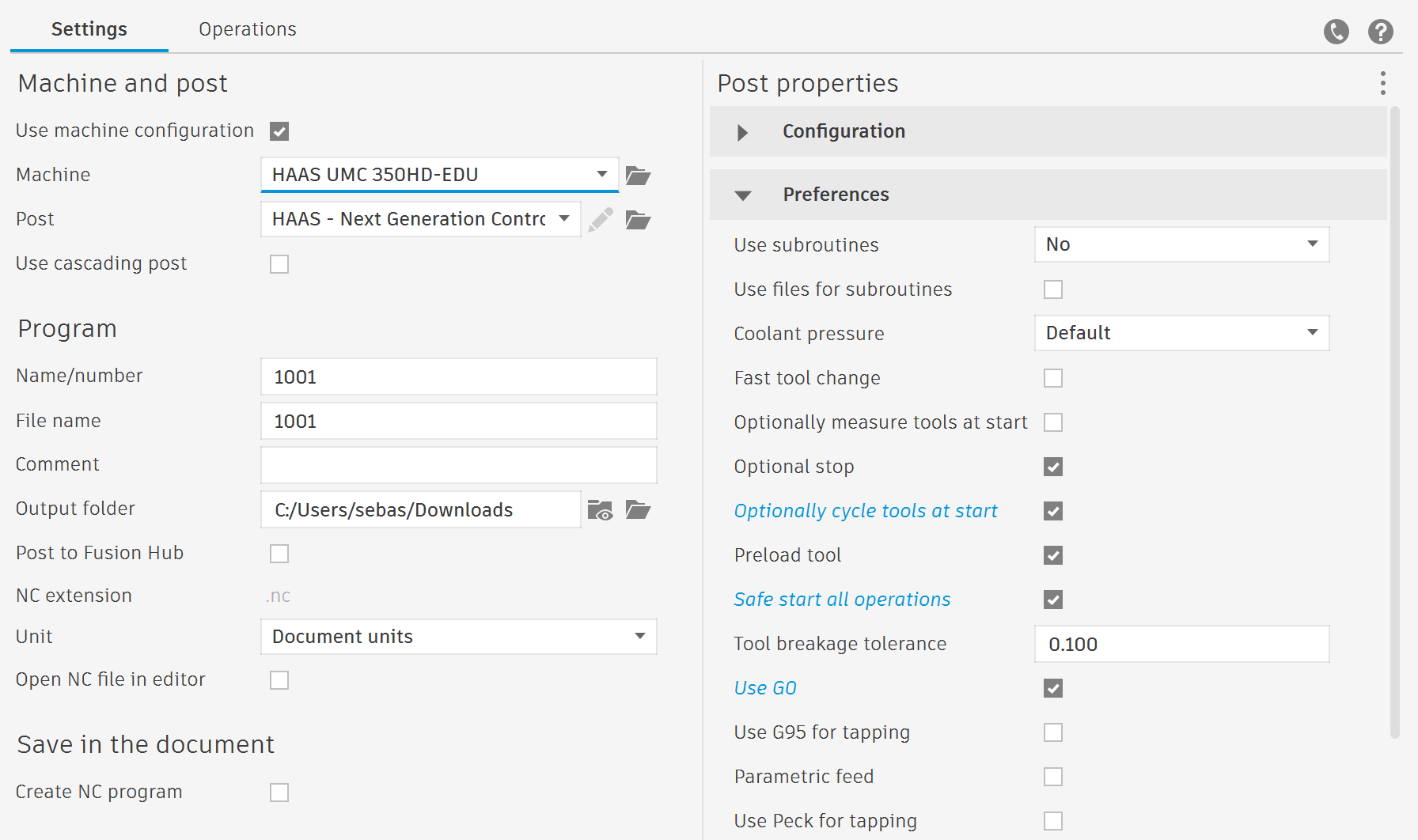
When you post process your code there are a few important settings.

  • You need to have the 5-axis machine selected, this changes how the G-code is written to make it suitable for the machine. This should autofill if you include the machine in the setup.
  • The name/number has to be a number, but which number doesn't matter.
  • Don't use "Optionally measure tools at start". It doesn't work and can actually overwrite the length offsets of tools incorrectly.
  • Turn on "Optionally cycle tools at start". This puts each tool in the spindle before you run the program, so you can validate you set the tool number correctly. This is important because it allows you to check you got the tool numbers correct, and you can measure the lengths to confirm all tools are probed. After all the tools have been validated you can turn on "block delete" and it won't cycle the tools every time you restart the program.
  • Turn on "Safe start all operations". This adds some extra lines of code that make it safer if you start your program part way through. These lines are optional so you have to turn off block delete to make them work. This setting isn't important most of the time.
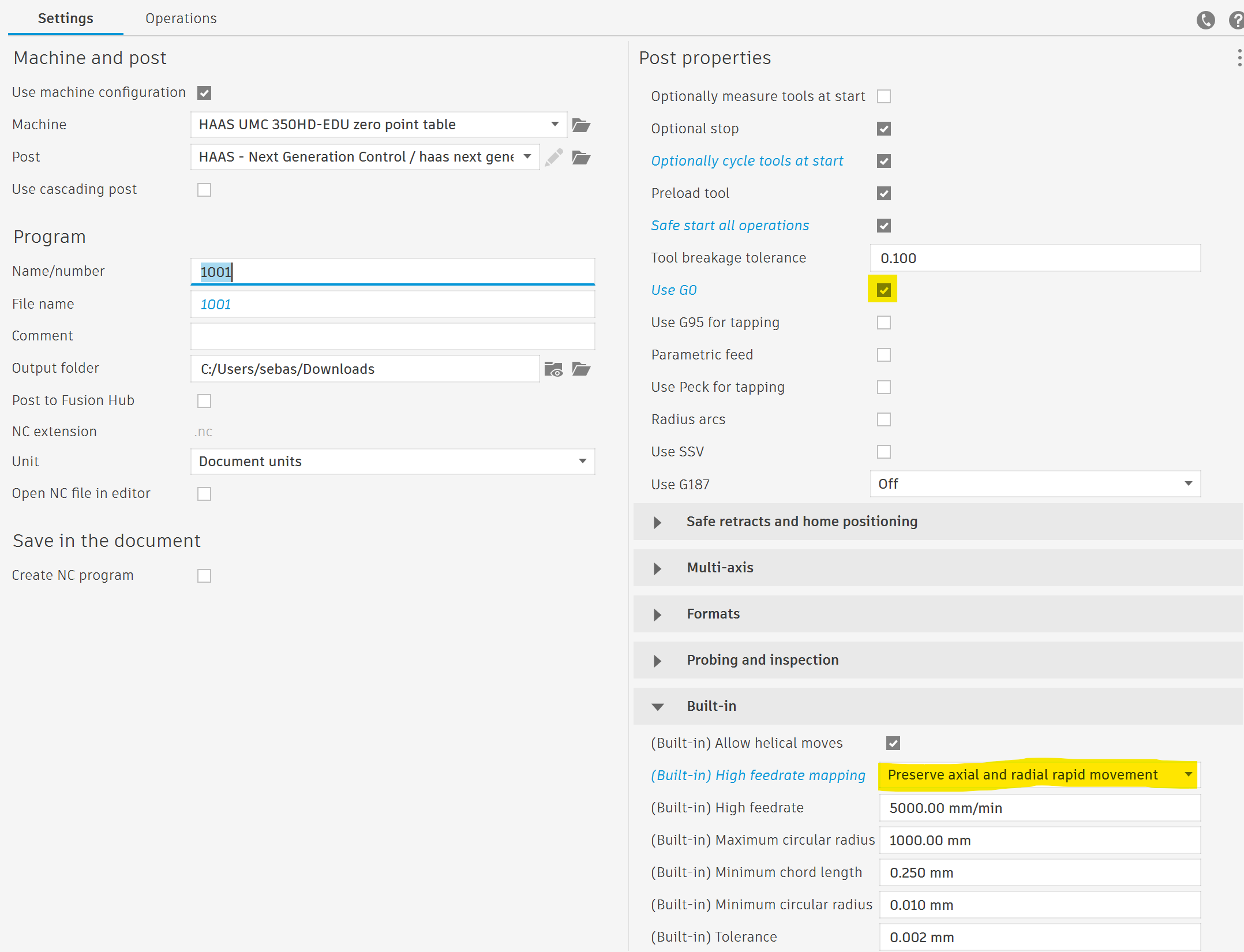
  • Turn on "Use G0". This means rapid move will be output as G0 moves. If you don't turn this setting on, some of the rapid moves will use G1 F5000 instead of G0. It is safer to keep all your rapid moves controlled by rapid override so it doesn't switch from rapid to feed unexpectedly.
  • IMPORTANT Change "High feedrate mapping" to "Preserve axial and radial rapid movement". Do not leave this as "Preserve rapid movement".
    • When using tool center point control (TCPC, G234) for simultaneous machining G0 moves including a B and C rotation can cause collisions, and create jerky movement. This setting changes these rotary rapid moves from G0 to G1 F5000 moves, which are safe and smooth.
    • Unfortunately this means some of your rapid moves are controlled by the feedrate override. Just know that your rapids might change from a 5% G0 move to a 100% G1 F5000 move. You might like to reduce your feedrate when stepping in a program but remember to increase it again before cutting.
  • All the other default settings should be correct.

Induction details

Haas 5-axis 3+2 CNC induction

The stock is a block of mild steel 65 x 50 x 20 mm. You can find more information such as the % carbon in the data sheet: https://www.edconsteel.com.au/store/sp/bfms.65.20

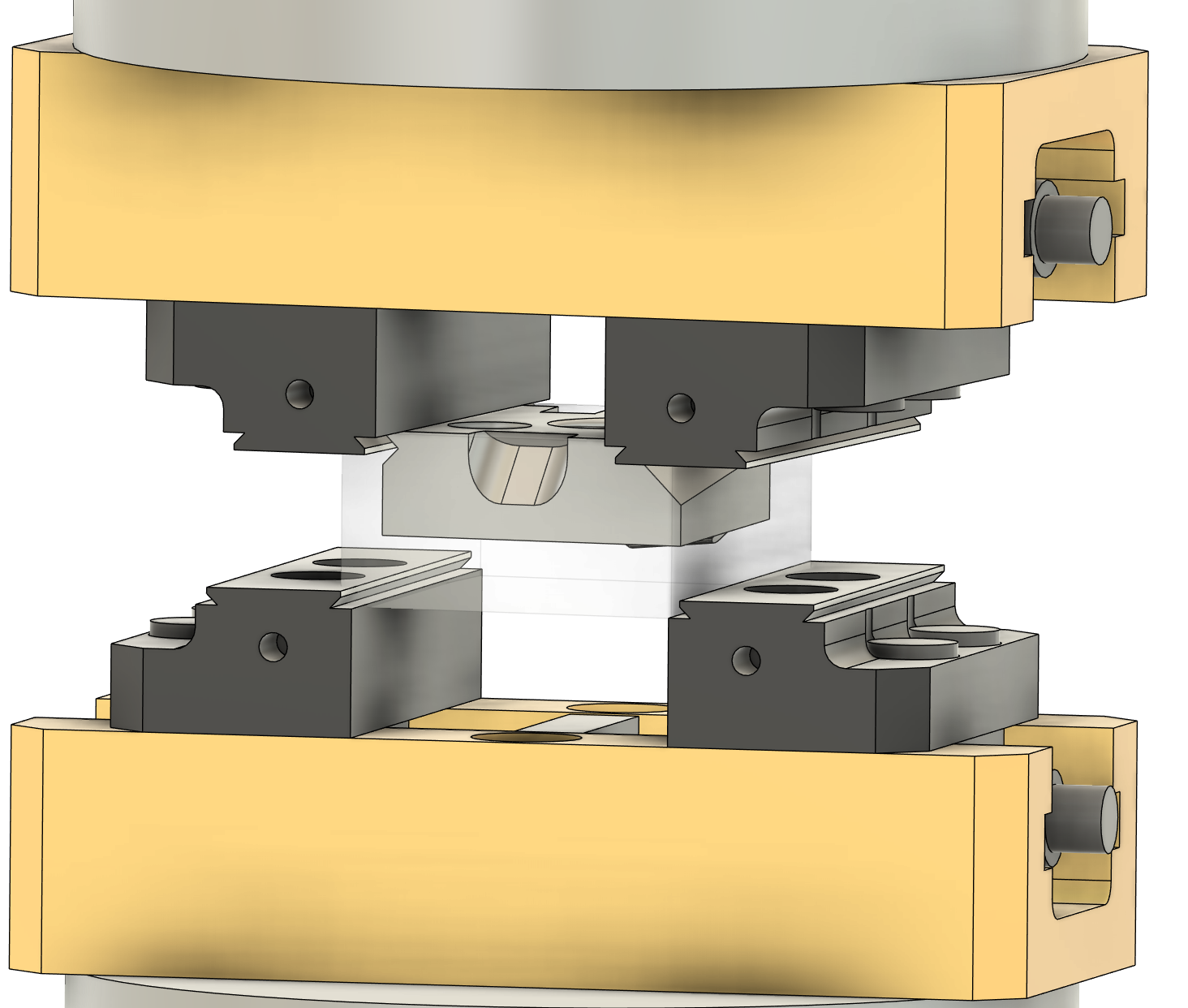
You should use the small yellow vice to hold the block on both sides. You must always model the vice in Fusion for 5 axis operations to check for collisions between the tools and the vice.

To setup the vices for two operations, import two copies of the vice model into the induction file. Then you can constrain one vice on both sides of the part, for op 1 and op 2. The first vice should be constrained from the center of the stock to the center of the part, with 0.5mm of stock above the part.

dovetail vice

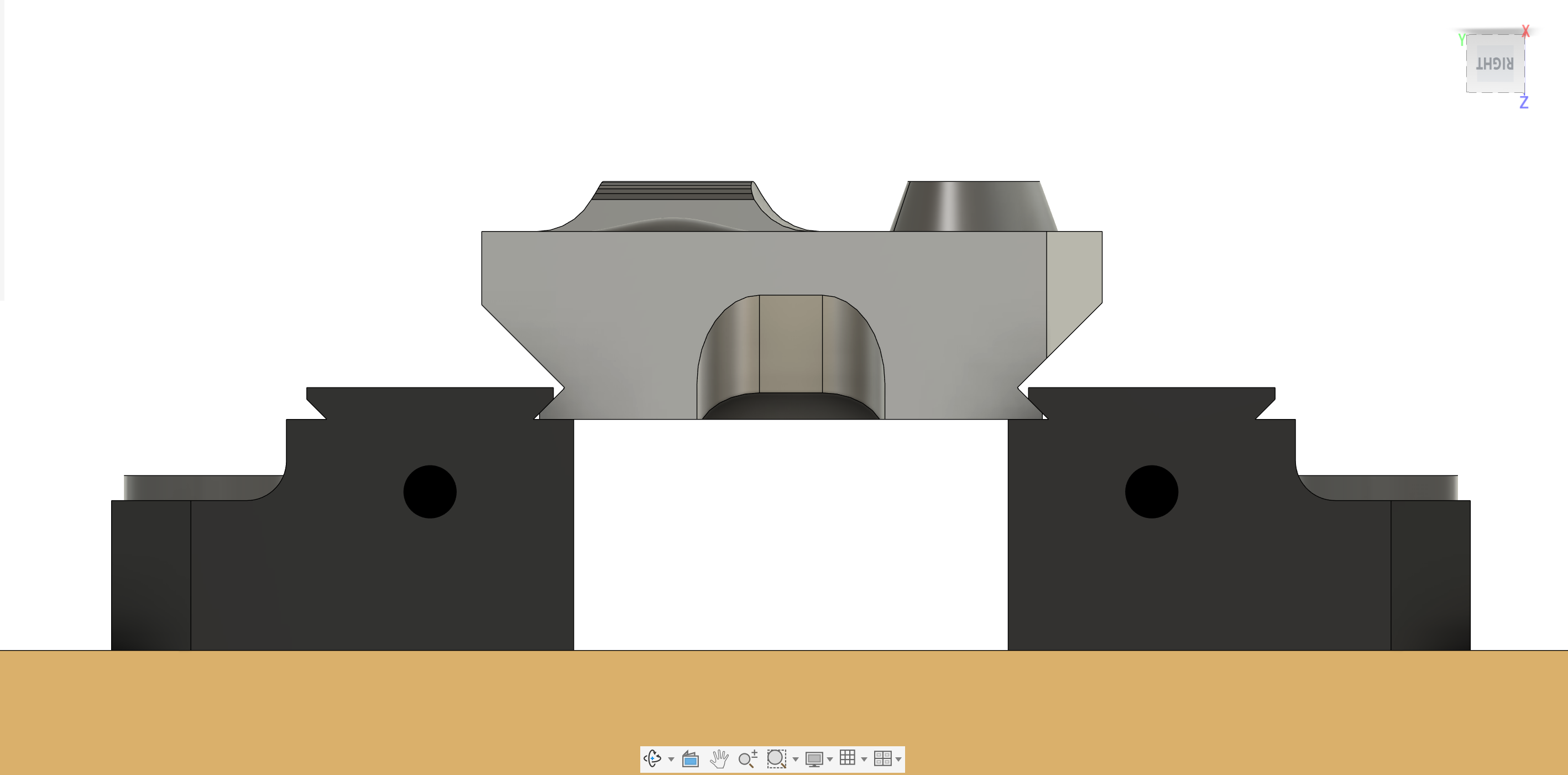
The second operation will clamp onto the dovetails that were milled in the first operation. When constraining the second vice you should ignore the rectangular stock because it has already been machined away. Constrain the second vice directly to the dovetail on the part, which is easier to do with 3 constraints rather than one joint.

You will need to adjust the parameterized stock Y distance to make the vice jaws close perfectly onto the part. If you constrain the part to one of the vice jaws, you can measure the distance between the second jaw and the part, then adjust the stock size to make it fit.

When you make your setups you can select the correct vice as the fixture, and it will ignore the other vice. You can define a radial and axial clearance to the fixture in your setup. Certain smart toolpaths (adaptive, pocket...) will use this to limit where they cut. However if the clearance is too large the toolpaths may not cut the areas you need.

fixture setup
  • Recommended tools:
    • 8mm flat endmill
    • 6mm ball mill
    • 6mm 90deg engraving mill
    • 9mm drill (the fusion hole making tools library has good drill feeds and speeds)
    • 6mm probe (tool number 10) (copy the OMP400 from the fusion library)
    • You may also use an insert face mill, but it is not required
  • It is very important to accurately model all your tools and their holders in order to know if your tool will collide with the vice or stock. Please ask a staff member to show you how to model holders if you haven’t done this before. Make sure to include if a tool uses flood or through tool coolant in your tool definition.
  • Please try to set your feeds and speeds for the tools and check them with a staff member before the induction.
  • You must deburr all sharp edges 0.2mm (Try the deburr toolpath with a ball mill)

Feature guide and requirements

feature 1

Recommended toolpaths: Adaptive, Flat, 2D contour

Work out what orientation would work best.

Make sure to clear most of the material before finishing.

Recommended toolpaths: 2D contour, Trace

This is a simple slot, which should be cut with a simple toolpath. More complex toolpaths (adaptive, pocket, flat…) are more difficult to control and probably won’t do exactly what you need to do.

You have to cut part of the slot in each operation, so this feature is designed to test how well you realign your part in op2.

Haas 5-axis 3+2 CNC induction
feature 3

Recommended toolpaths: Adaptive, Flat, 2D contour

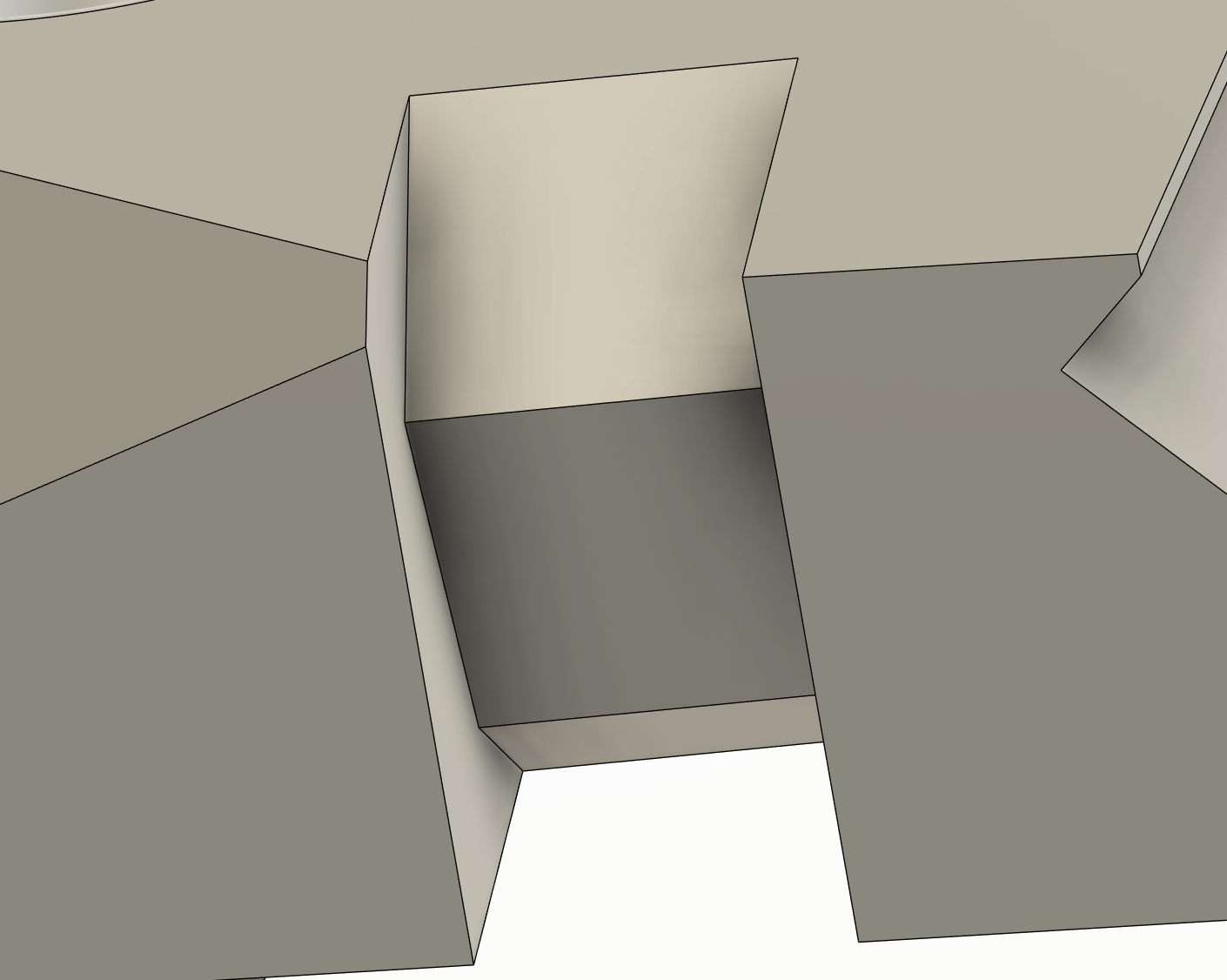
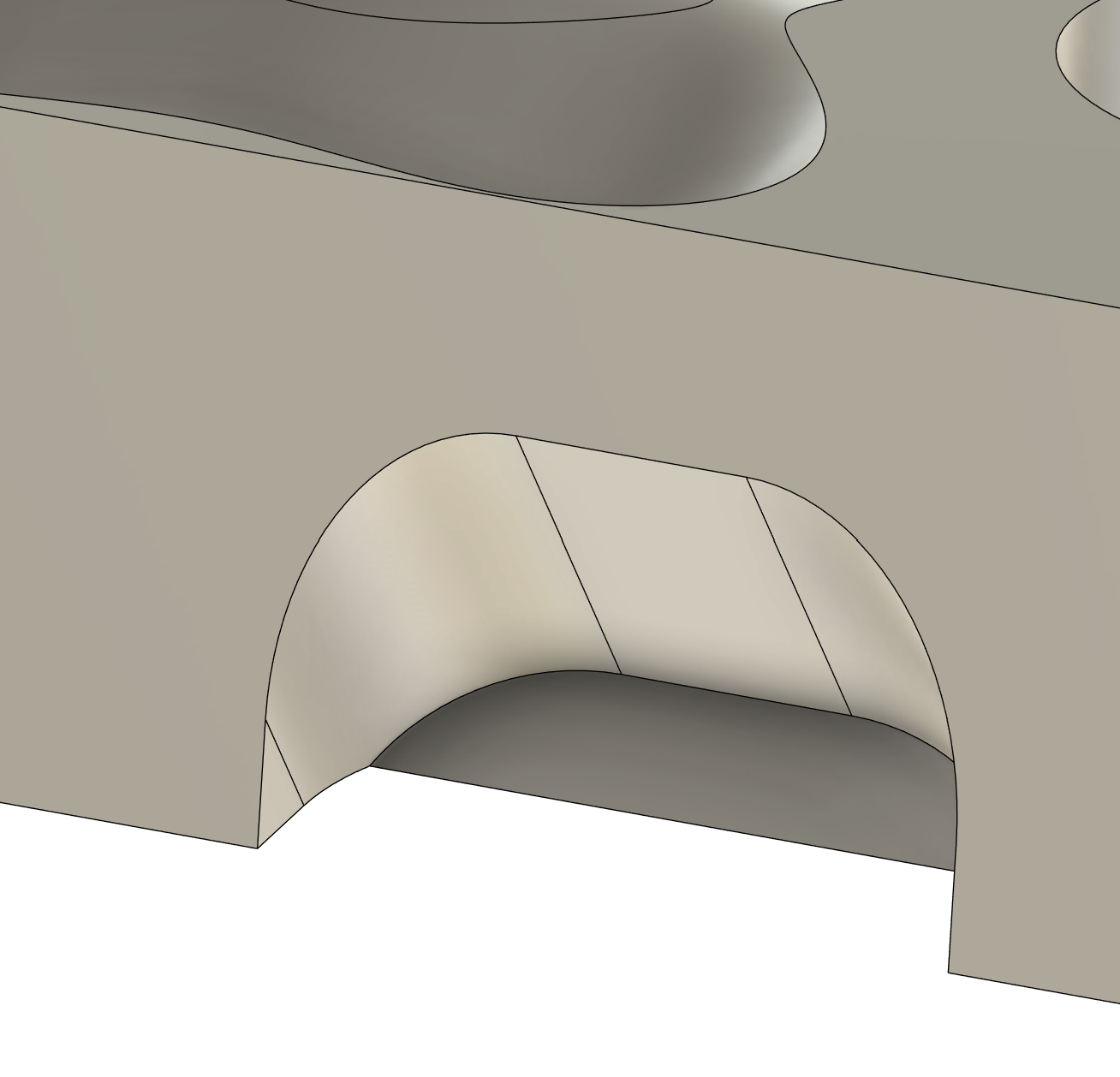
The dovetails have a square corner, so it can be machined with a flat endmill easily.

If you are feeling fancy you can try to use a pattern to duplicate your toolpath from one side to the other. A side note, mirror patterns will reverse climb and conventional.

The dovetail will fit in the vice for op2. Holding onto a dovetail rather than the flat sides of the stock is much stronger, so dovetails can be cut in raw stock for extra work holding strength when machining tall parts.

The dovetails have been designed at a 5 degree angle to the stock, to force you to learn more complex probing for op 2.

Recommended toolpaths: Adaptive, Flat, 2D contour, Blend, Scallop, Flow, Morph

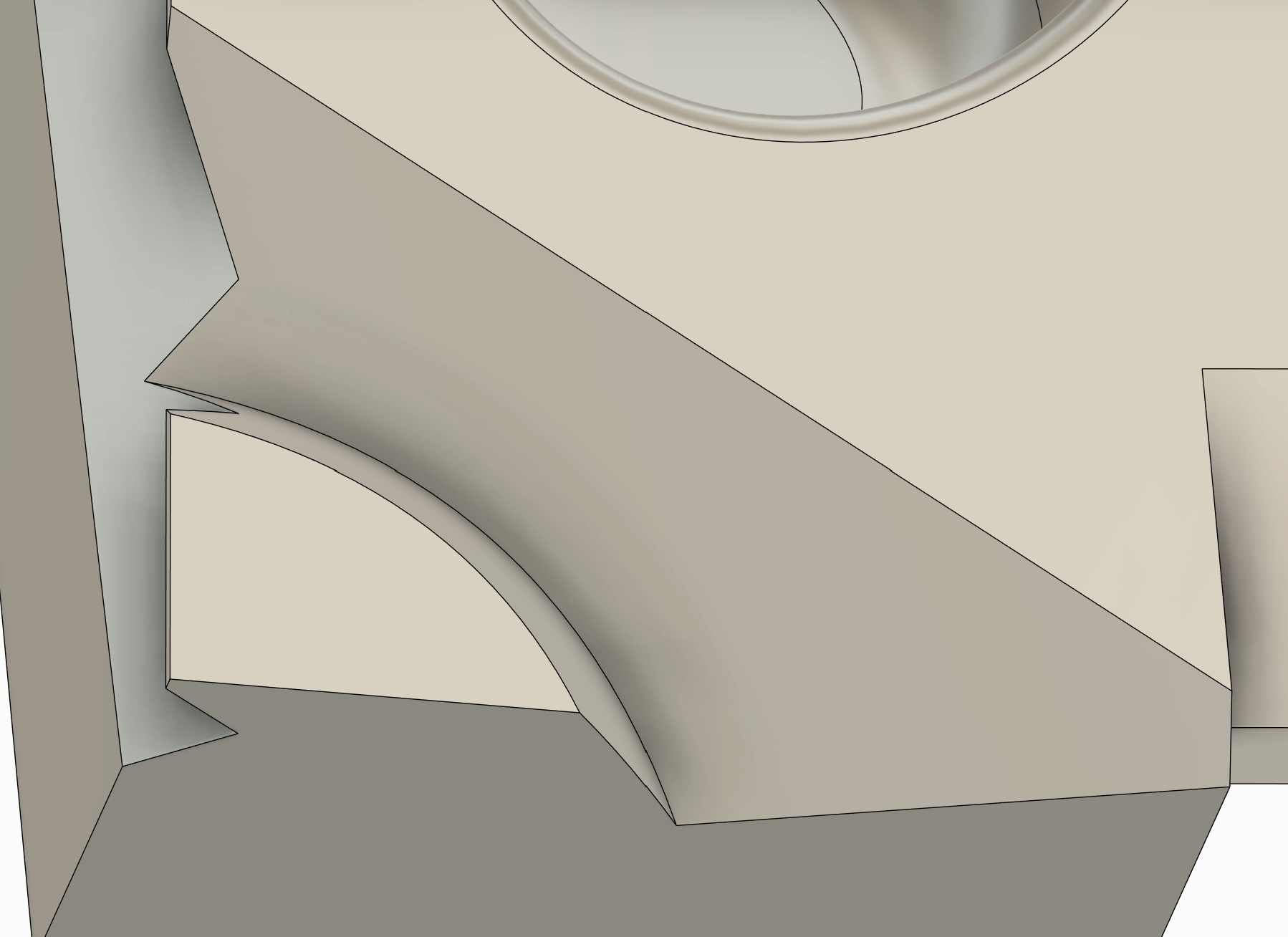
Try to use different toolpaths for the external and internal fillet. The internal fillet has the same radius as the 6mm ball so it is best to finish in with one motion.

For best surface finish, finish the floors and walls before finishing the fillets so that the ball mill is cutting the minimal amount of material.

feature 4
Haas 5-axis 3+2 CNC induction white space
white space

Op 1 Recommended toolpaths: Drill (use deep drilling full retract, slightly slower but safer), Adaptive, 2D contour, Probe geometry (in the inspection tab)

Op2 Recommended toolpaths: Manual NC, Probe WCS (look at the probing requirements section of this guide for more information)

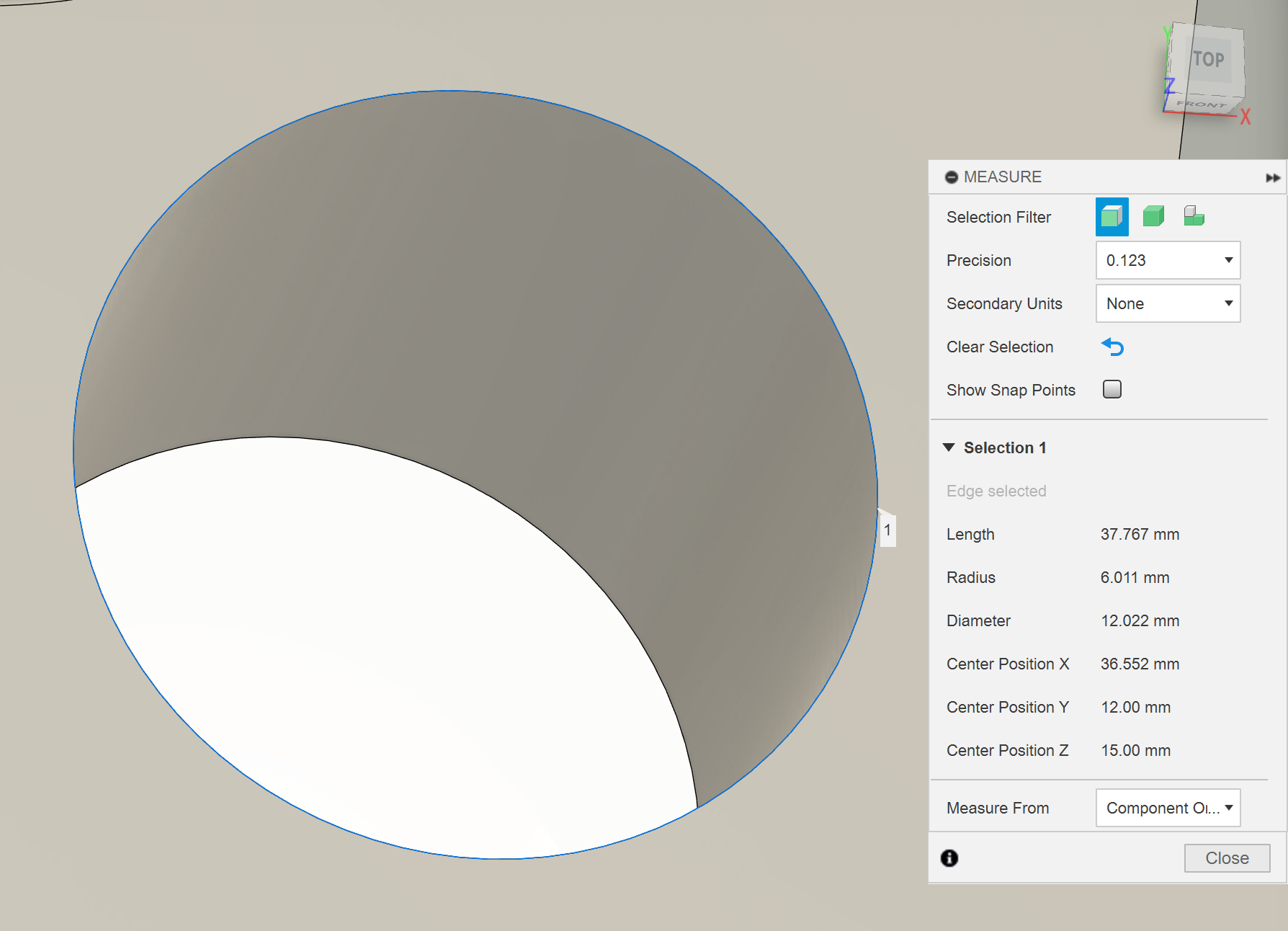
For the 12mm hole you must predrill the hole with the 9mm drill and plunge the 8mm endmill through the predrilled hole. This is the best practice to avoid tight ramping or boring, as descending toolpaths will put excessive stress and wear on the flat end of the tool.

We are also going to use this 12mm hole to automatically probe an accurate XY in the second operation so please cut 1mm deeper than it is modelled. Please do not cut though the entire stock, so we can try some different probing routines.

Make sure there are no plunges in simulation, it is easy to mess up the drilling depth.

This hole needs to be milled using wear compensation to create a precise sliding fit for a 12mm dowel/endmill. It should be within a F6 tolerance, which is between 12.016 – 12.027mm. The hole has been modelled in the middle of that range as 12.022mm. This is a tight tolerance, but the machine should be able to do it. This can be done automatically by probing a semi-finished diameter and using wear offsets.

Useful tolerance websites if you have to do this yourself - https://amesweb.info/fits-tolerances/tolerance-calculator.aspx and https://www.mec-engineering-spreadsheets.com/documentation-area/fit-tolerances-and-applications/

I would recommend doing a spring pass to reduce the taper of the hole.

For the wear offset probing to work the semi finish and finish toolpaths have to be identical. Same stepover, same feed, spring pass, etc.

The stepover for semi and final finishing cannot be too small, otherwise the wear compensation can make the stepovers largely different. Imagine a small 0.05mm stepover, if the radial wear offset is 0.015 then the real stepover of the semi finish pass is 0.05 but the final pass stepover is 0.065, a 30% increase. This increased stepover will increase the tool deflection and then the bore is the wrong size.

To get a nice surface finish (and to learn) you are required to do two feed rate compensations in order to maintain the desired chip thickness for the tool. These will be two numbers that you multiply with your original feed rate.

Firstly, adjust for chip thinning due to the small finishing stepover. https://www.machiningdoctor.com/calculators/chip-thinning-calculator/

Secondly compensate for the difference between actual and effective feedrate due to milling a tight curve.

Recommended toolpaths: Adaptive, Flat, 2D contour

Work out if this should be milled in op1 or op2.

Be carful when you set you bottom and top heights.

Haas 5-axis 3+2 CNC induction
feature 7 white space

Recommended toolpaths: Adaptive, 2D contour, Trace, Flat

To machine this feature you must use the flat tip of the endmill from 11 different orientations. It is annoying to create a different operation for each orientation and fortunately you don’t have to. You can create the finishing operation for one side then use a circular pattern (under setup) to do the rest. The flats are each 6 degrees apart and the central axis should be under the construction tab. You can also create the axis of rotation by creating two midplanes between any four of the flats, then create an axis at the intersection of the midplanes.

Make sure the tool doesn't gouge into the surrounding stock. To avoid gouging you might have to edit the lead in parameters and design the toolpath to cut close to the center of the tool.

Make the tool lead in from the side of the feature, rather than plunging or ramping down.

Recommended toolpaths: Adaptive, 2D contour, Blend, Morph

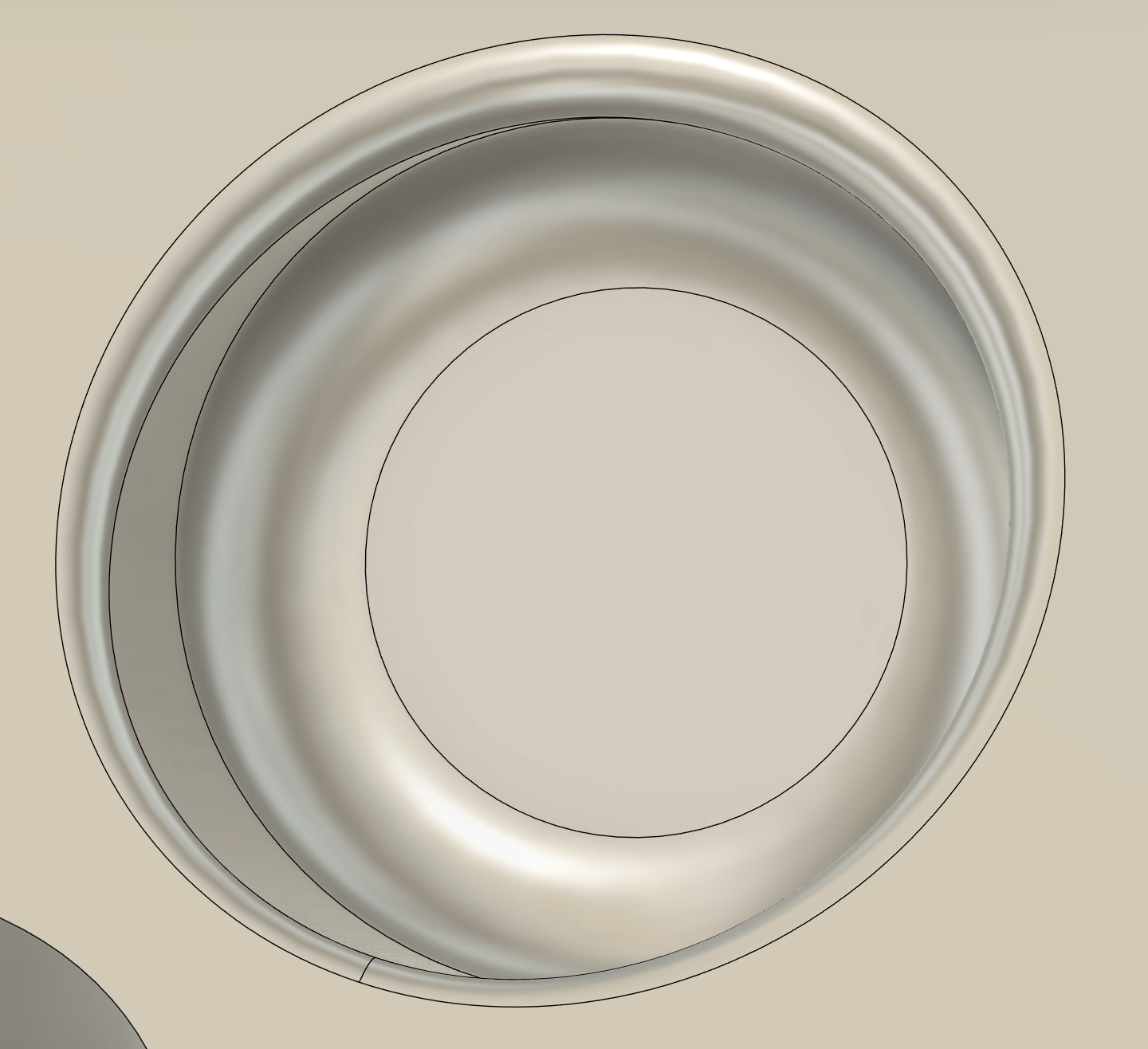
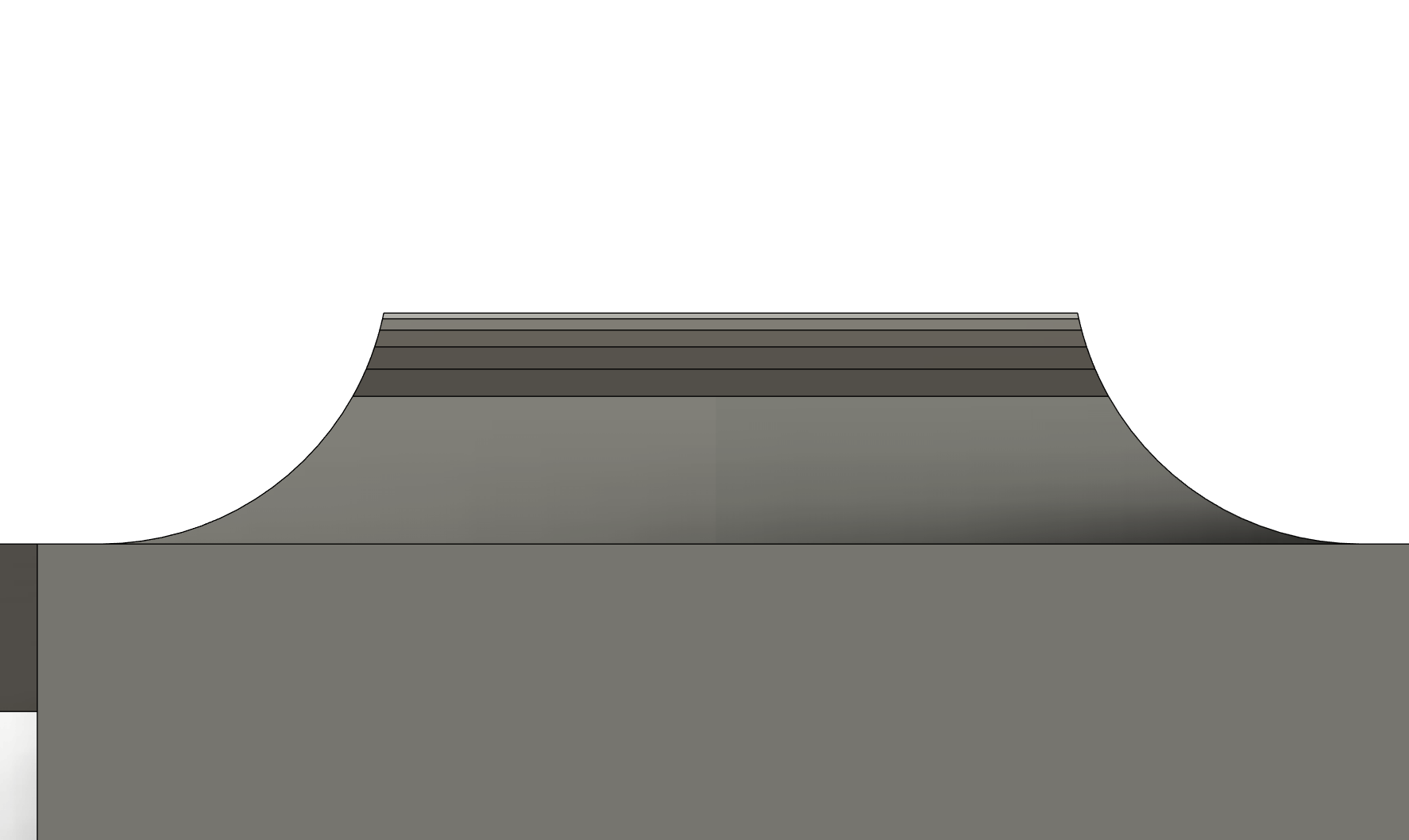
The fillets here can be milled from the top with the 6mm ball or from the side with the 8mm flat. Using the side of the 8mm flat will be much quicker and smoother, just make sure to check for collisions in simulation.

Try to use Feed Optimization setting to reduce the chatter of the tool in the tight corner. The fillets are bigger than the tool (which is the ideal way to design your parts) but the tool engagement will still spike in the corner. Reduce the feed of the tool according to the effective feedrate compensation from the feed and speed module.

feature 8
Haas 5-axis 3+2 CNC induction

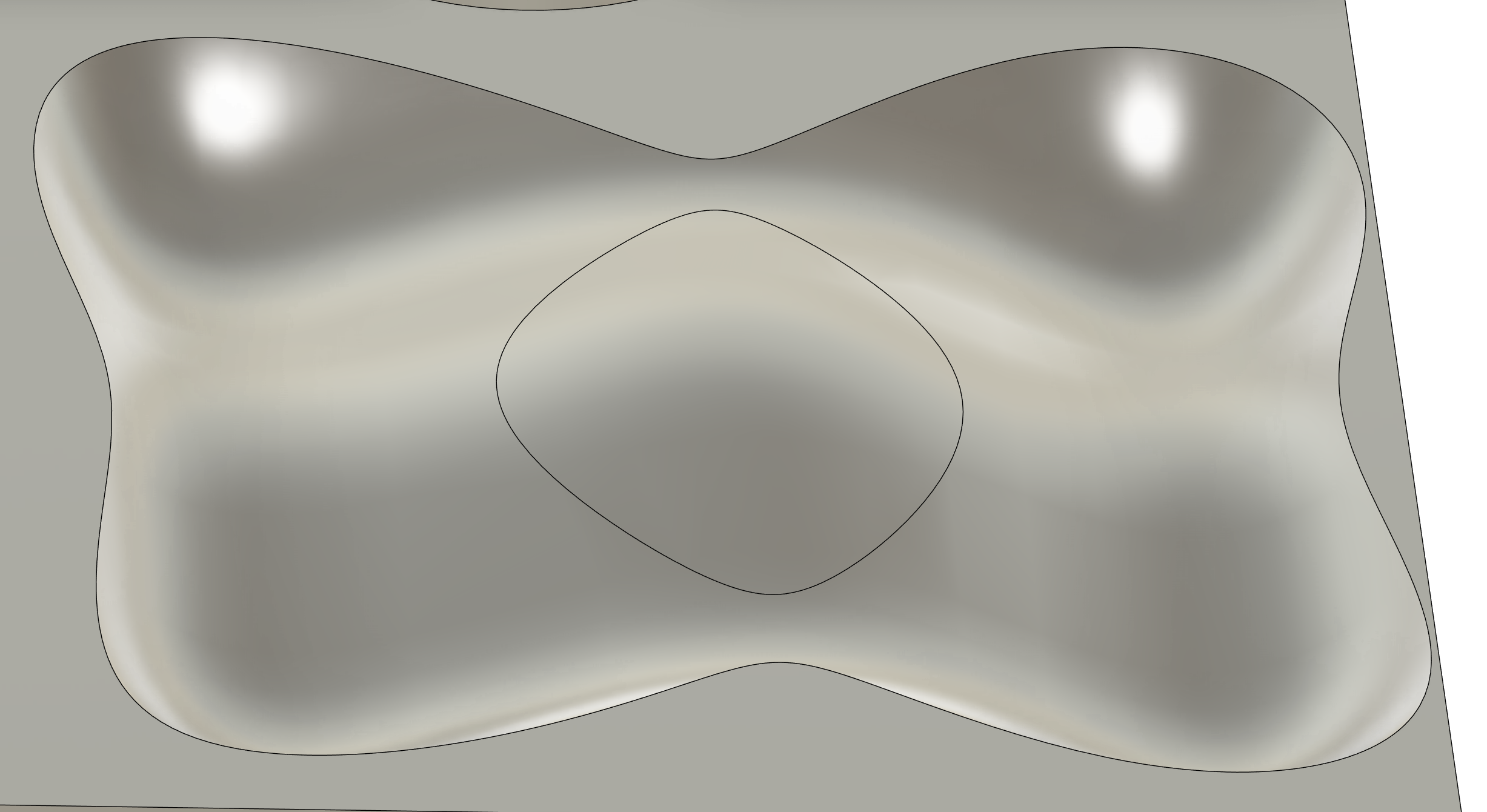
Recommended toolpaths: Pocket roughing, Multi Axis finishing, Steep and Shallow, Blend, Flow, Geodesic

Make sure to do a roughing operation with the ball mill before finishing. A roughing operation with the flat endmill leaves a lot of stock so your finishing pass depth of cut will be inconsistent, which creates worse surface finishes.

In this scenario pocket (offset) roughing is better than adaptive. Pocket is designed for small stepdown and large stepovers and will allow slotting. Adaptive is designed for large step downs and small stepovers and won’t allow slotting.

If you would like to you can machine this feature with full simultaneous toolpaths. I would recommend Multi Axis Finishing, Steep and Shallow, Blend, Flow or Geodesic. If using any of the traditional 3D toolpaths try to find ones with the Lead and Lean setting, this is an easy way to control the angle of the tool and prevent cutting on the tip.

It is also sometimes useful to use the avoid surfaces setting or the model setting (with the setup model not included) to prevent the tool from machining the surrounding flat area. These are both in the geometry tab of certain toolpaths.

Recommended toolpaths: Adaptive, Advanced Swarf, Swarf

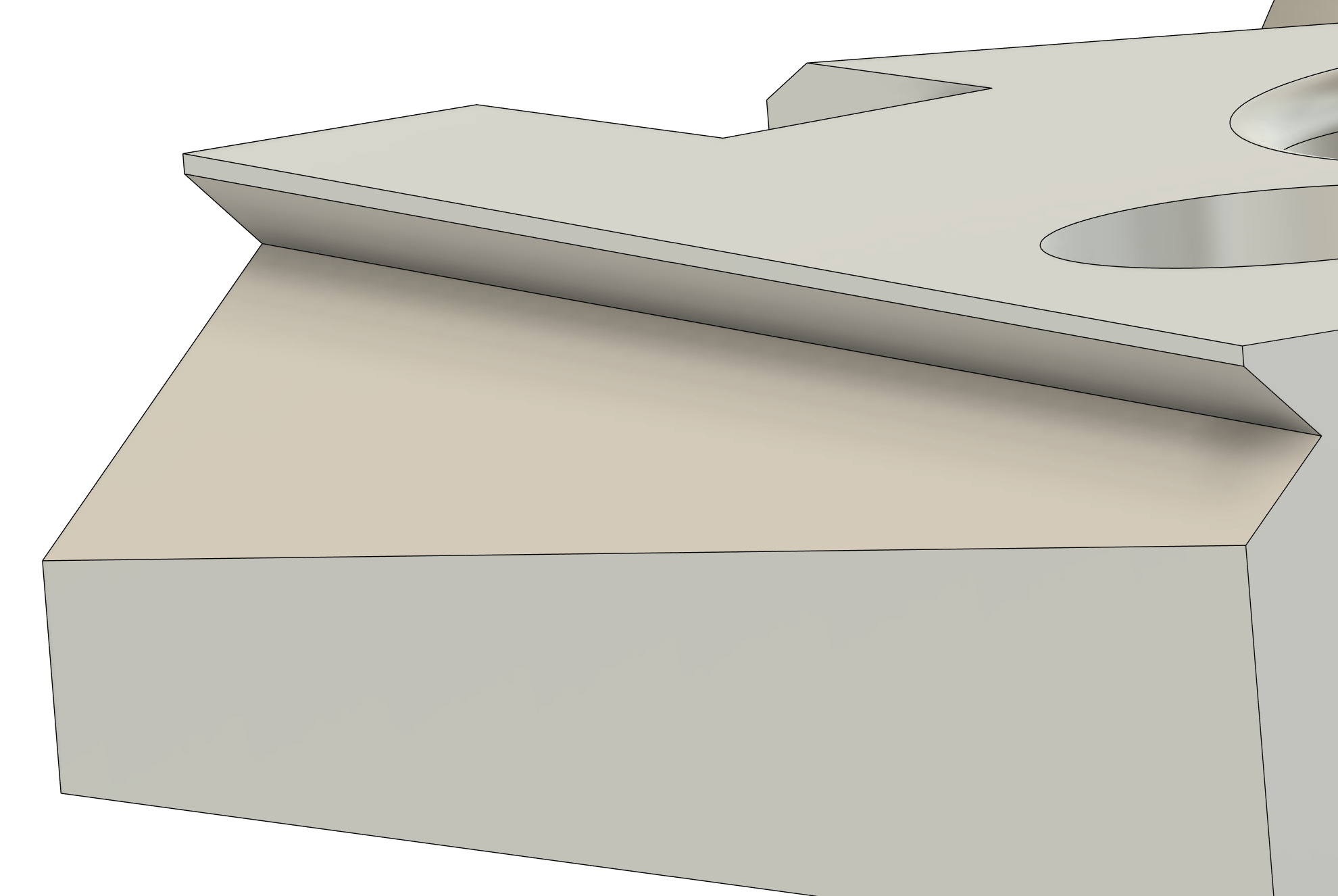
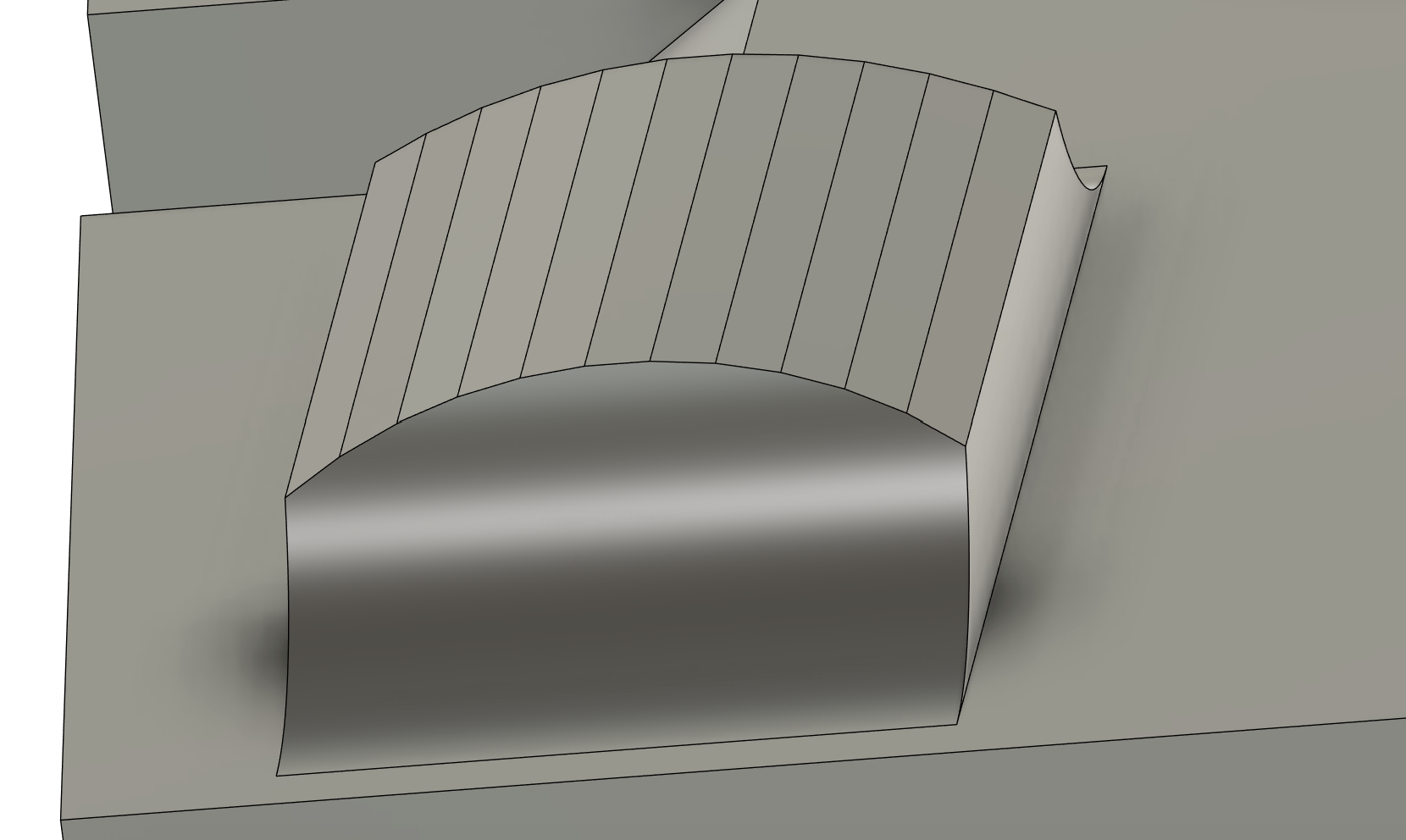
This is the only feature that requires a full simultaneous toolpath! It is included in the 3+2 induction because it is a common 5 axis feature and simple to program. To cut this feature you will swarf with the tool, which means cutting with the side of the tool during simultaneous machining.

I always use the Advanced Swarf toolpath over Swarf because it has a lot more options to control the behavior. It is usually a good idea to define the Guide Curves, Floor Surfaces, and Adjacent Surfaces in the Geometry tab.

feature 11
feature 10

Recommended toolpaths: Engrave

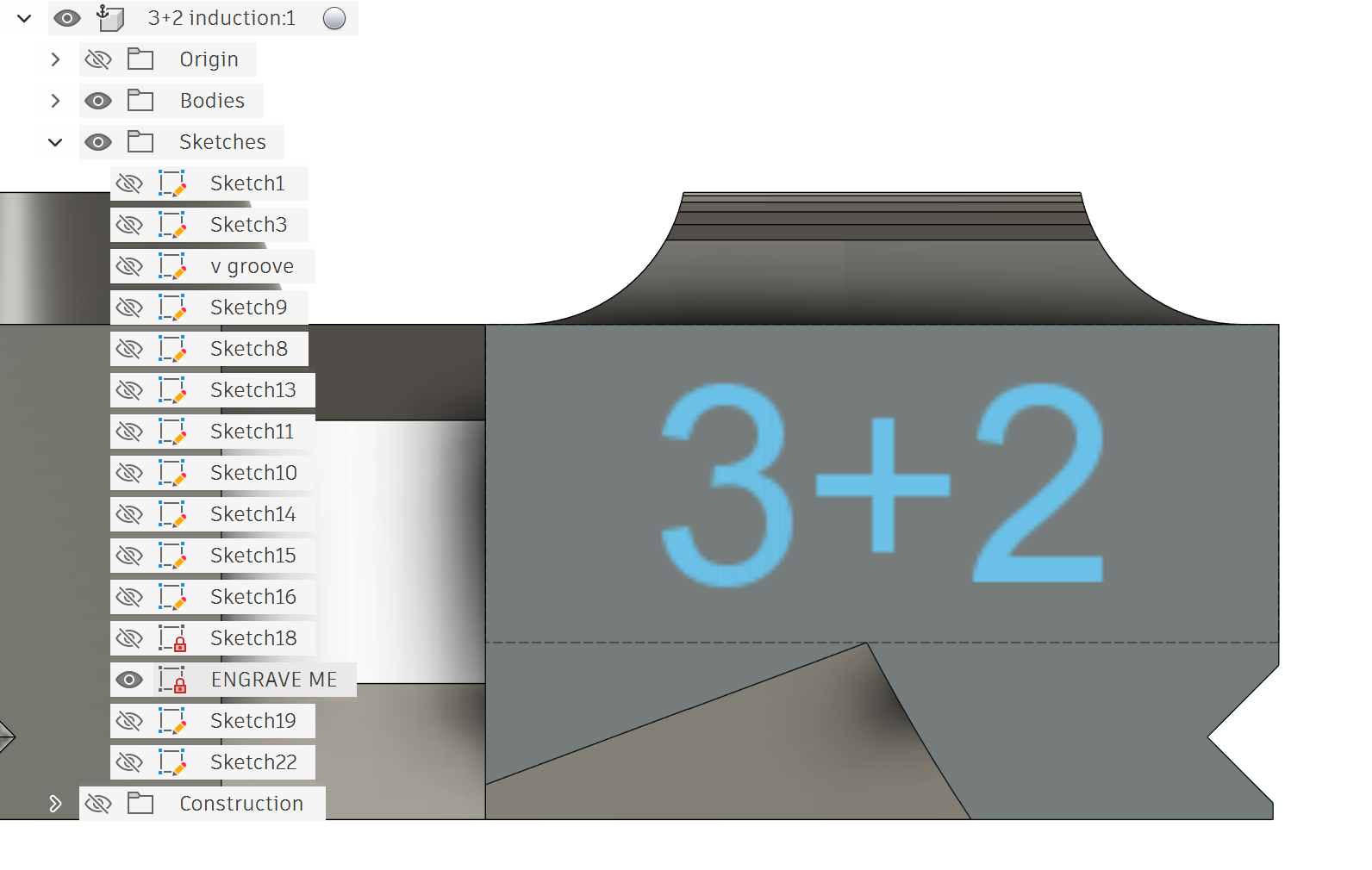
Please engrave 3+2 into the side of the part.

This is designed to force you to rotate the vice to a 90 degree angle, so that you can see how important tool clearance and accurate holder and vice simulation is.

If we don’t have any coated engraving tools you can do it with an uncoated endmill but make sure to label it for steel, because it will be too dull for aluminium afterwards.

Probing requirements

In order to learn how to use the probe there are several probing requirements when setting up op2. The first three steps you will do manually during the induction to locate a rough origin. Steps 4 to 6 should be prepared before the induction in your CAM program and will use the rough origin to probe an accurate origin.

Step 1

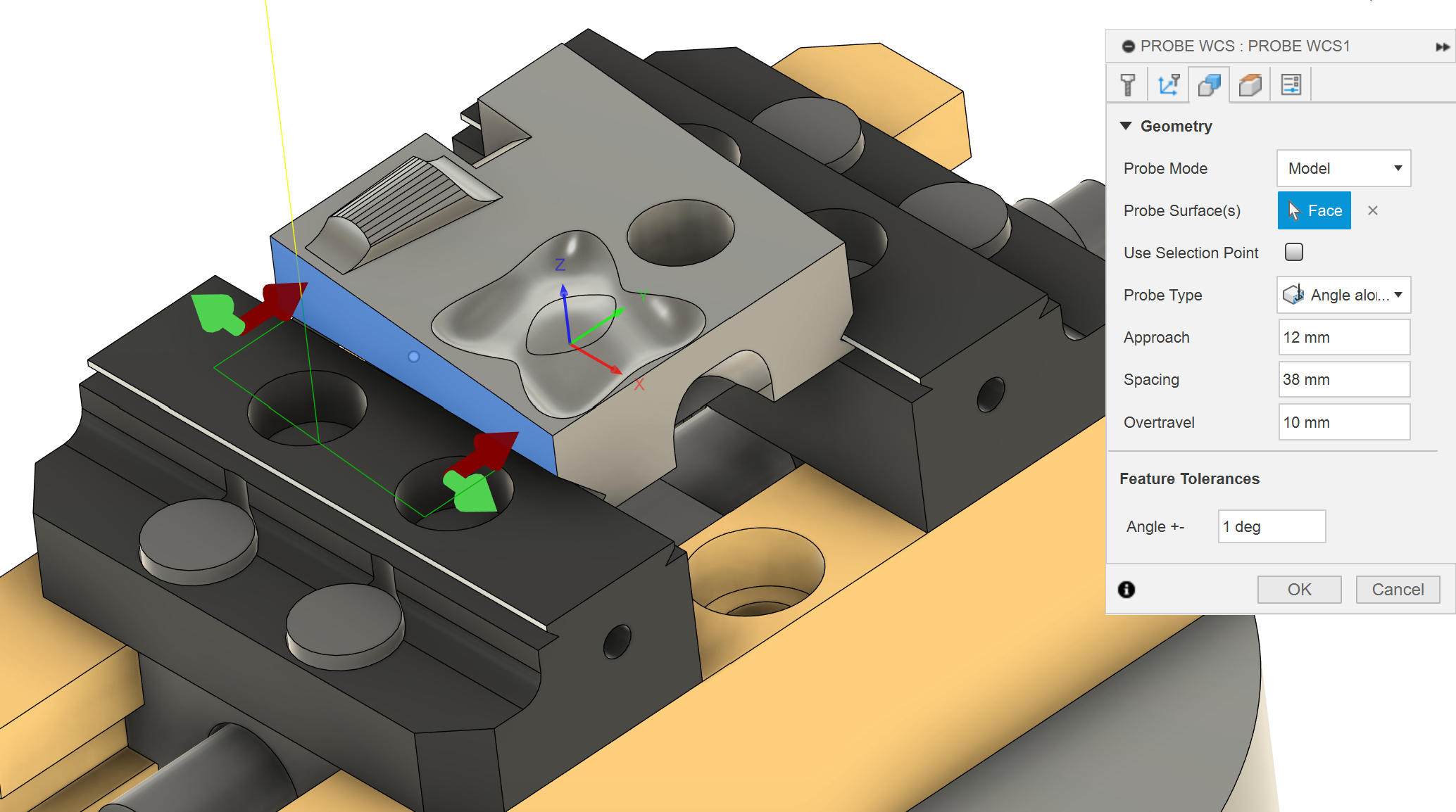
When you flip the part for operation 2, it will clamp into the vice at an angle. During the induction you will manually use the corner angle probing routine on the machine to roughly measure this angle on the raw stock edges. Then you will manually update G54 C origin and rotate the part to align with the XY axes.

Step 2

Once the part is aligned, you will manually probe a rough G54 XY origin in the center of the part using the top hat sides (the uncut stock). This origin is good enough to do roughing operations with stock to leave but not accurate enough for finishing operations.

Step 3

You can manually probe Z on the top surface of the jaws. This isn’t perfect but it is accurate to about 30um. It isn’t easy to probe on the inbuilt parallels of the vice because they are too small.

You will need to create a sketch of this custom origin point at the height of the jaws and in the center of the part.

WCS op 2 3+2

Step 4

You can use the rough origin to mill off the top hat so that you can probe a more accurate origin. In your CAM you should setup an in-process probing to measure the accurate part angle on a machined surface and update the G54 origin.

When in-process probing an angle the machine controller will write the measured angle to the C axis G54 origin, then rotate the part to G54 C0. This rotation makes the part parallel with the axis. The vices in the 5-axis are also not trammed correctly so it is sometimes important to probe the angle on the raw stock and very important on flip operations.

The Haas 5-axis UMC doesn't normally use G68 rotation.

white space Advanced CNC milling

Step 5

In your CAM program, automatically probe an accurate XY origin off the 12mm circular hole and update the G54 origin using in process probing. You have to do this after probing your accurate angle, otherwise the hole will be in the wrong position and the XY origin will be wrong.

Step 6

Make sure you use the correct post processor and check for a B0. C0. call in the G-code. The Haas 3-axis and Haas 5-axis treat angle probing differently and the only way the post processor know what machine you are using is by selecting the machine model in the post processor.

With the 5-axis machine selected there should be G0 B0. C0. command after you probe the angle (or any B and C values). If this isn't there the machine will crash because it updates the origin but doesn't rotate the C axis to the new origin. Please read the G-code to check it output correctly (we have had issues with this).

post process settings

Safety

Physical clearance check

Hopefully you should be familiar with physically checking clearance to the vice on a three axis mill (by handle jogging to the deepest Z). If you haven't done this before please ask a staff member to show you (and you probably don't have enough experience to be doing this induction).

Physically checking clearance is a super important step to avoid collisions. Even if the simulation doesn't have any collisions small variations between the simulation and real life can cause collisions. Common examples are stickout of tools, height variations in the stock, the part not being centered in the vice and inaccuracies in the machine rotary zero point.

Unfortunately physically checking the clearance for 5 axis work is hard because there are so many ways for it to collide.

These instructions are here as a reference (you don't need to memorize them or read them) and a staff member will go through this with you during the induction.

  1. Probe the G54 origin on the machine
  2. Simulate the toolpath with machine
  3. Click on points of the toolpath that gets closest to the vice
  4. Pick the situations with the least clearance. These will most often be at B0 and B90 between the tool/holder and the stock/work holding.
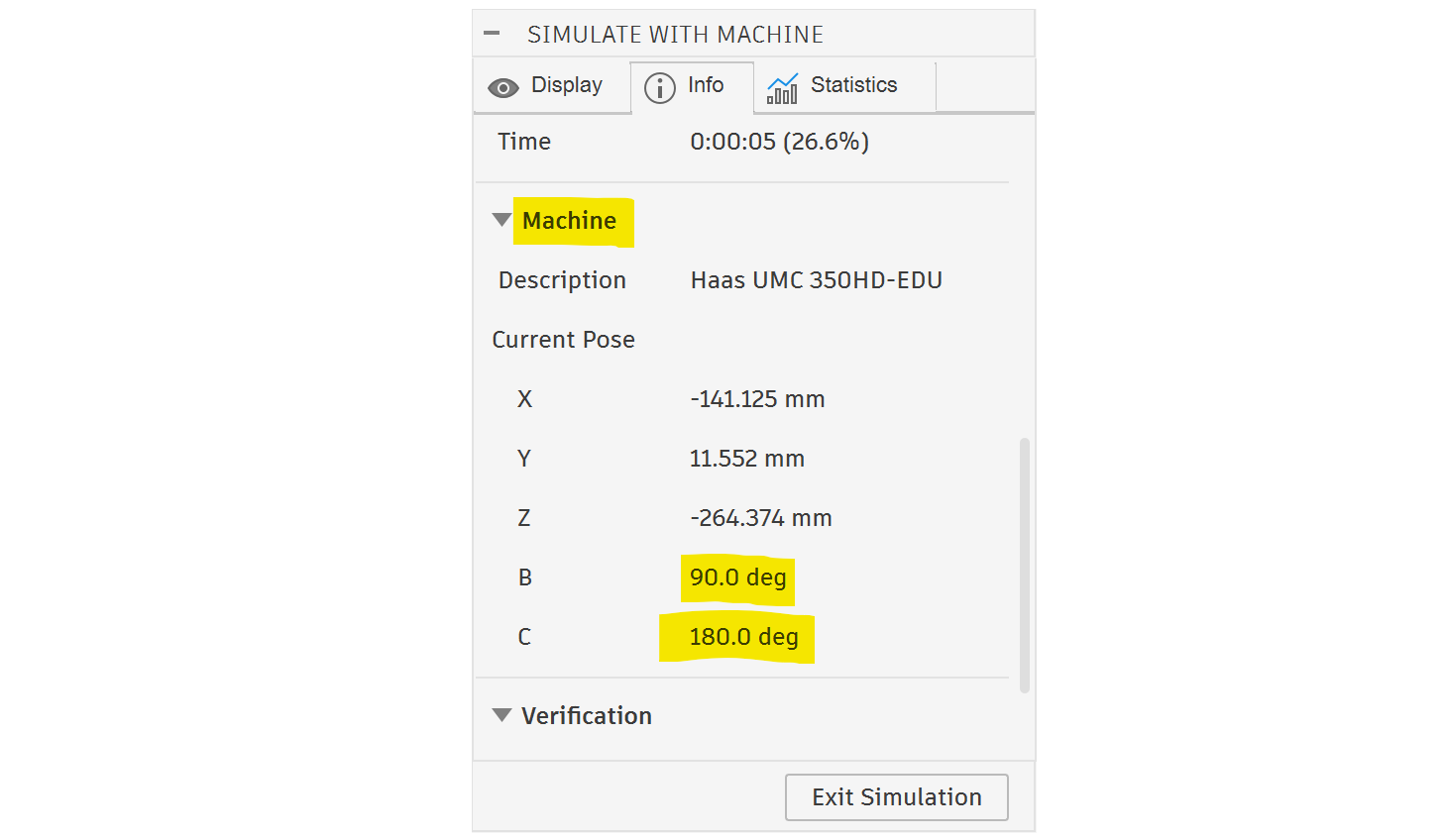
  5. You can find the B and C value under the info machine section of the simulation.
  6. Handle jog the machine to the matching B and C angle from the simulation.
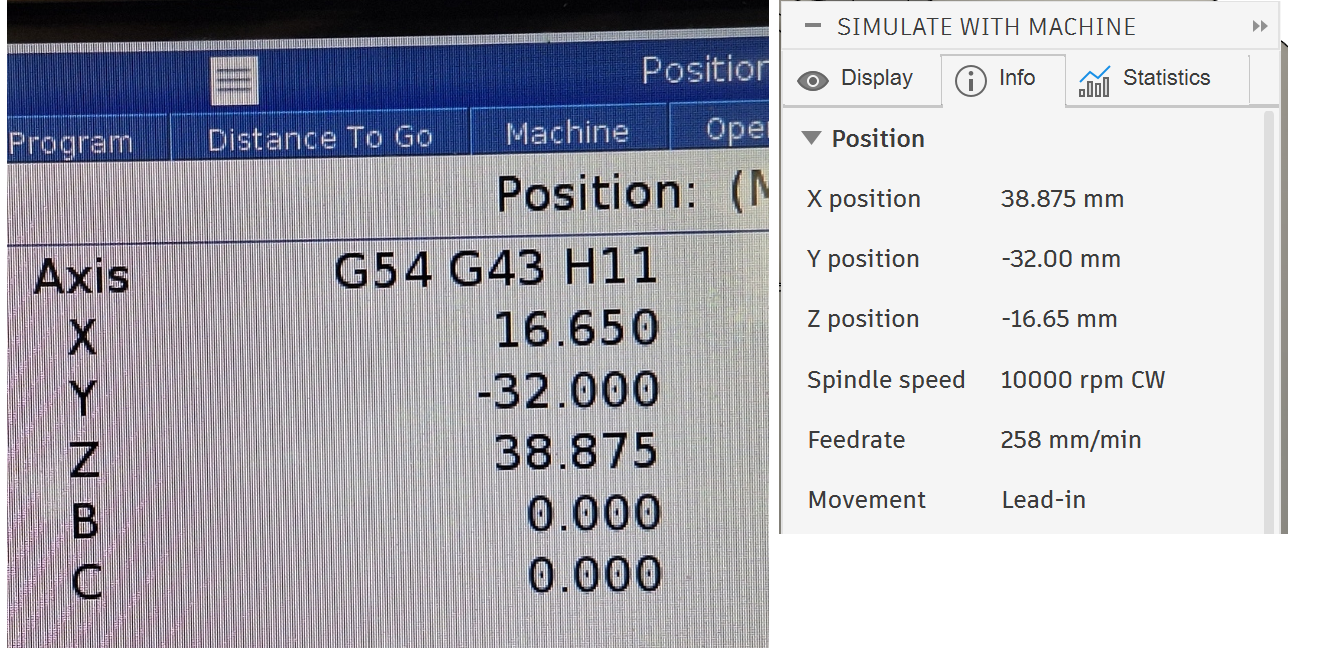
  7. Find the relevant X Y and Z position of the tool from the info position section of the simulation.
    1. Fusion simulation always assumes that the machine will be in TCPC mode. However the G-code can be written in TCPC mode (for simultaneous) or DWO mode (for 3+2)
    2. It is safe to take the TCPC XYZ position from Fusion simulation and use it to check clearance on the machine in TCPC mode. Even if the machine actually runs in DWO mode the physical position will be the same as if it was run in TCPC mode.
    3. If you take the XYZ position directly from your G-code you must check if the G code is in DWO (G254) or TCPC (G234) mode. You must the check it on the machine in the matching mode.
  8. To activate tool center point control (TCPC) you must run G54; G234 H#3026 ; M0; in MDI. This program is also saved in the machine memory
    1. With TCPC active you can see where you relative to the rotated origin!
  9. Unfortunately, you can't handle jog with TCPC active. So work out how far you have to move, then press reset and handle jog the correct amount. To help you work out the distance to go in handle jog you can use this TCPC distance to go calculator
  10. When you get close to the correct position check if you clear the vice or chuck as you slowly and carefully get closer. For chucks you will normally want to rotate them 360 degrees in C to check clearance of all three jaws.
Screenshot 2026-10-04 210008 white space 5 axis position checking combined

G0 Tool center point control collisions

Haas controllers use two different methods to do 5 axis work: dynamic work offset (DWO, G254) or tool center point control (TCPC, G234). DWO is used for 3+2 machining while TCPC is used for simultaneous machining.

TCPC does not work properly during rapid moves (G0) due to the way HAAS programmed the G0 command. G0 moves are designed to be as fast as possible and will cut corners (a straight line is faster than an arc). Fusion simulation assumes that TCPC is accurate during G0 moves (which it isn't). This can cause physical crashes that do not show up in simulation.

The solution is to change the post process setting high feedrate mapping to preserve axial and radial rapid movement. This will cause the post processor to write rotational rapid moves as G1 F5000 moves. TCPC works correctly during G1 moves so this will avoid collisions.

axial and radial rapids

Safe run

Safe run detects and prevents collisions during rapid moves. If you are not completely certain the program won't collide use safe run. Safe run slows down the rapids to detect excess force, but an extra couple minutes of machining time is nothing compared to an expensive spindle replacement.

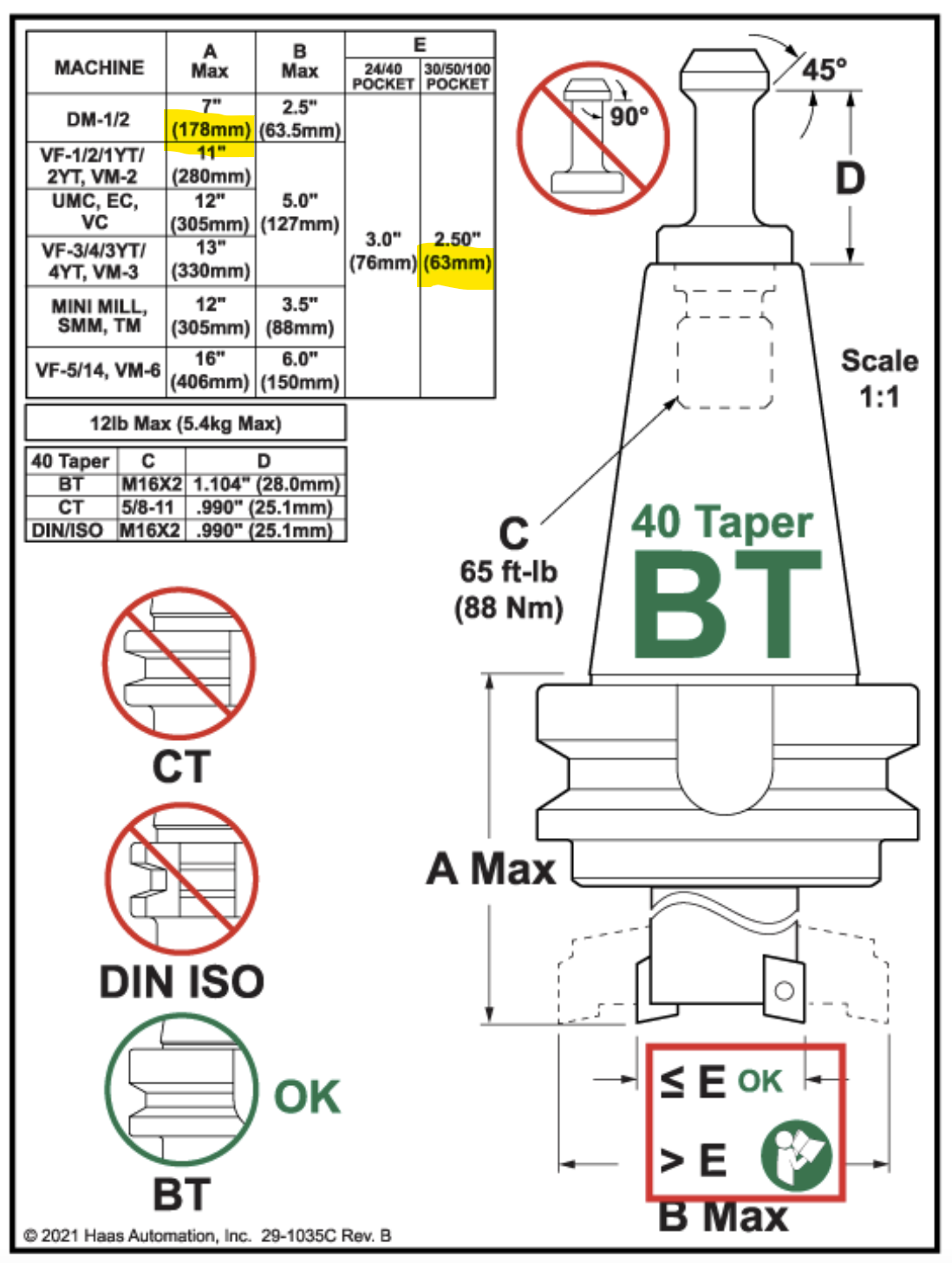
Max tool size

Max tool length in the ATC: 178mm

Max tool diameter in the ATC: 63mm

Max tool diameter in the machine: 127mm

haas UMC tool size

Related Badges